RBrowser Main Viewer
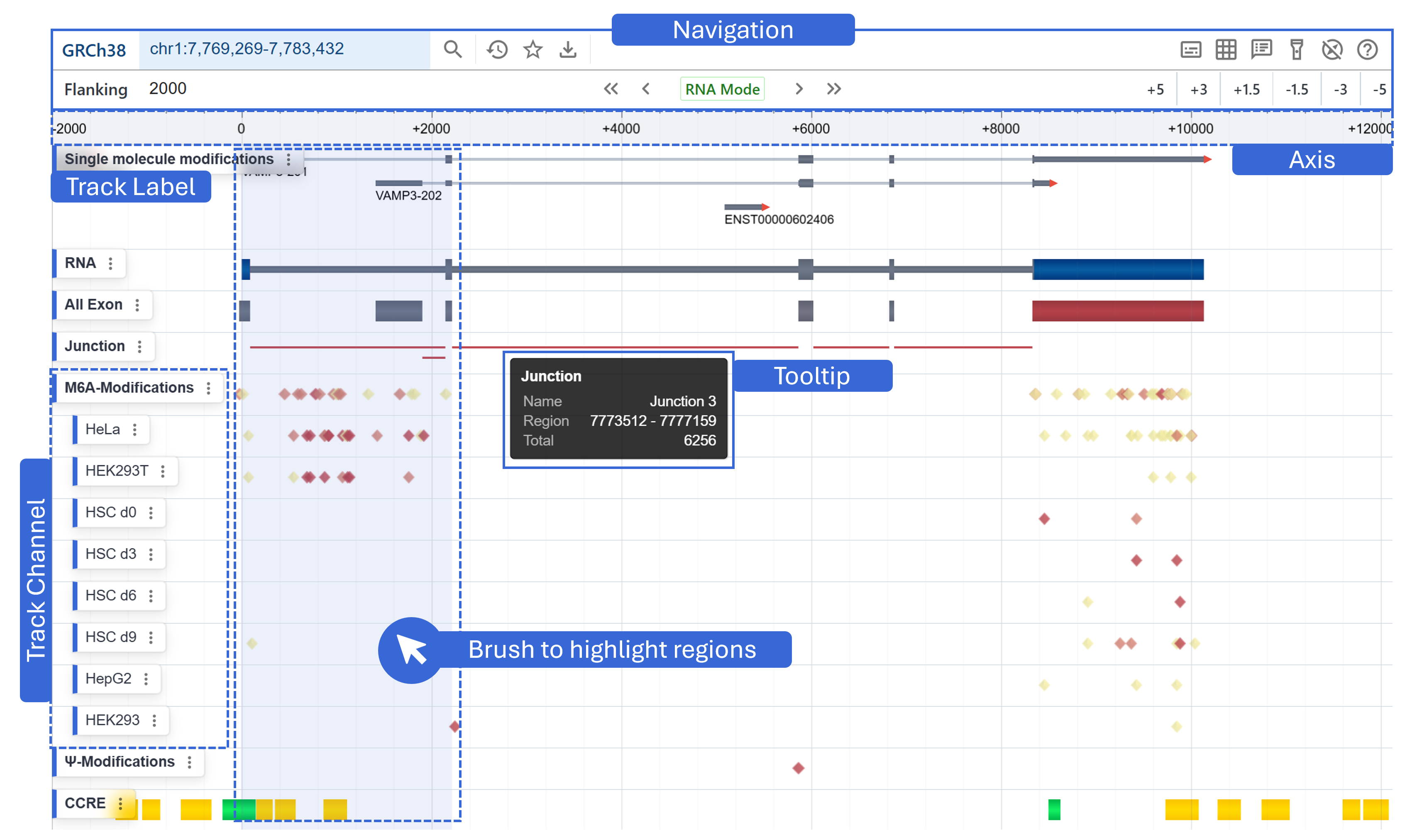
Navigation
The Navigation panel is organized into two horizontal tiers for efficient, contextual control:

Primary Controls (Top Row)
- Reference Version
Displays the current reference assembly (e.g. GRCh38). -
Search Box
Enter gene names, transcript names for instant lookup. After entering your query, press Enter or click to search.
A better way is to open the left sidebar and search by transcript name, gene name, or transcript ID. Results are grouped by transcript type — click the arrow on the left to expand a group, or click a transcript directly to render it.
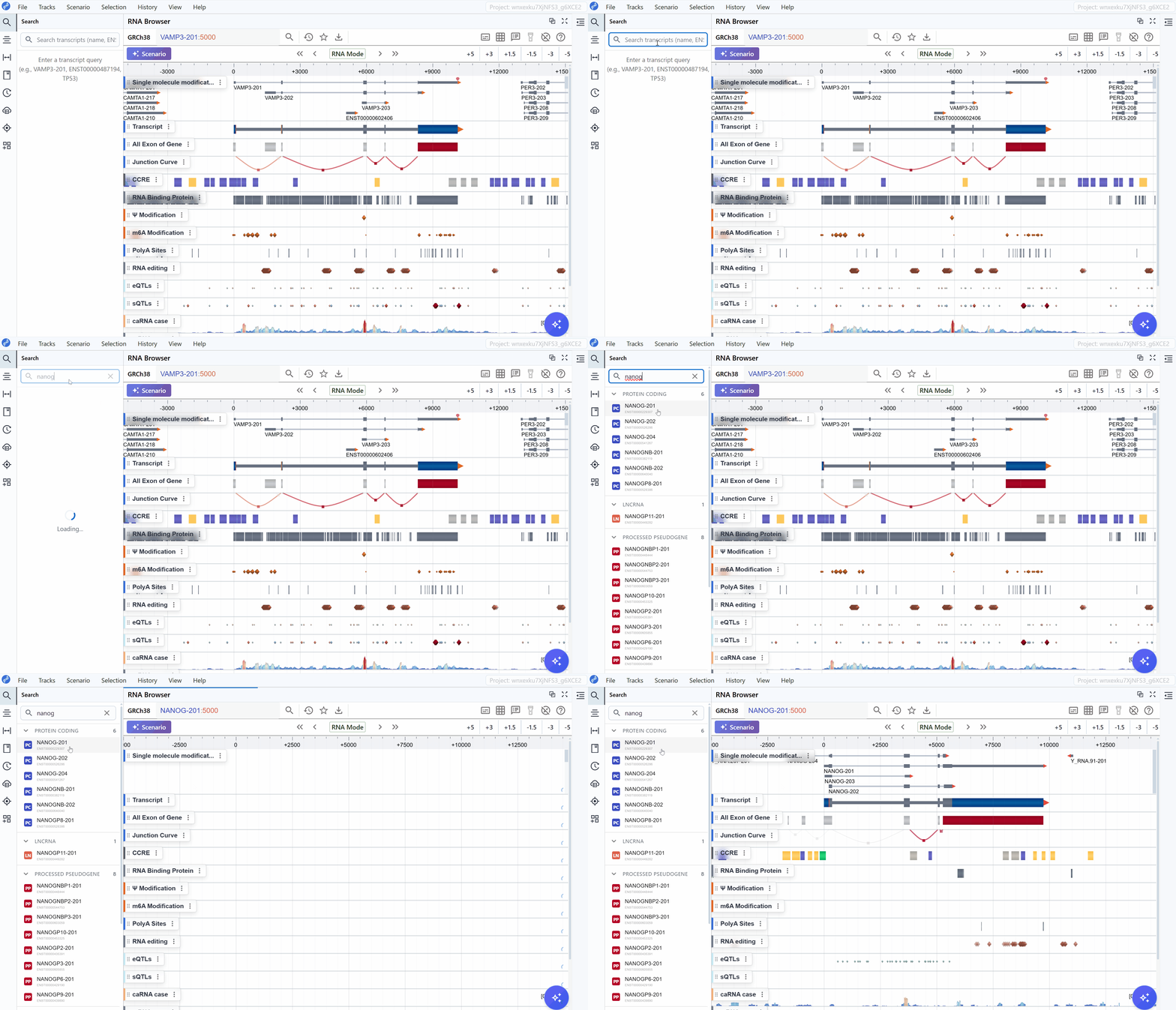 3. History
Access a drop-down of recently navigated regions.
4. Bookmark
Save or recall custom favorite transcripts.
5. Download
Export the tracks images.
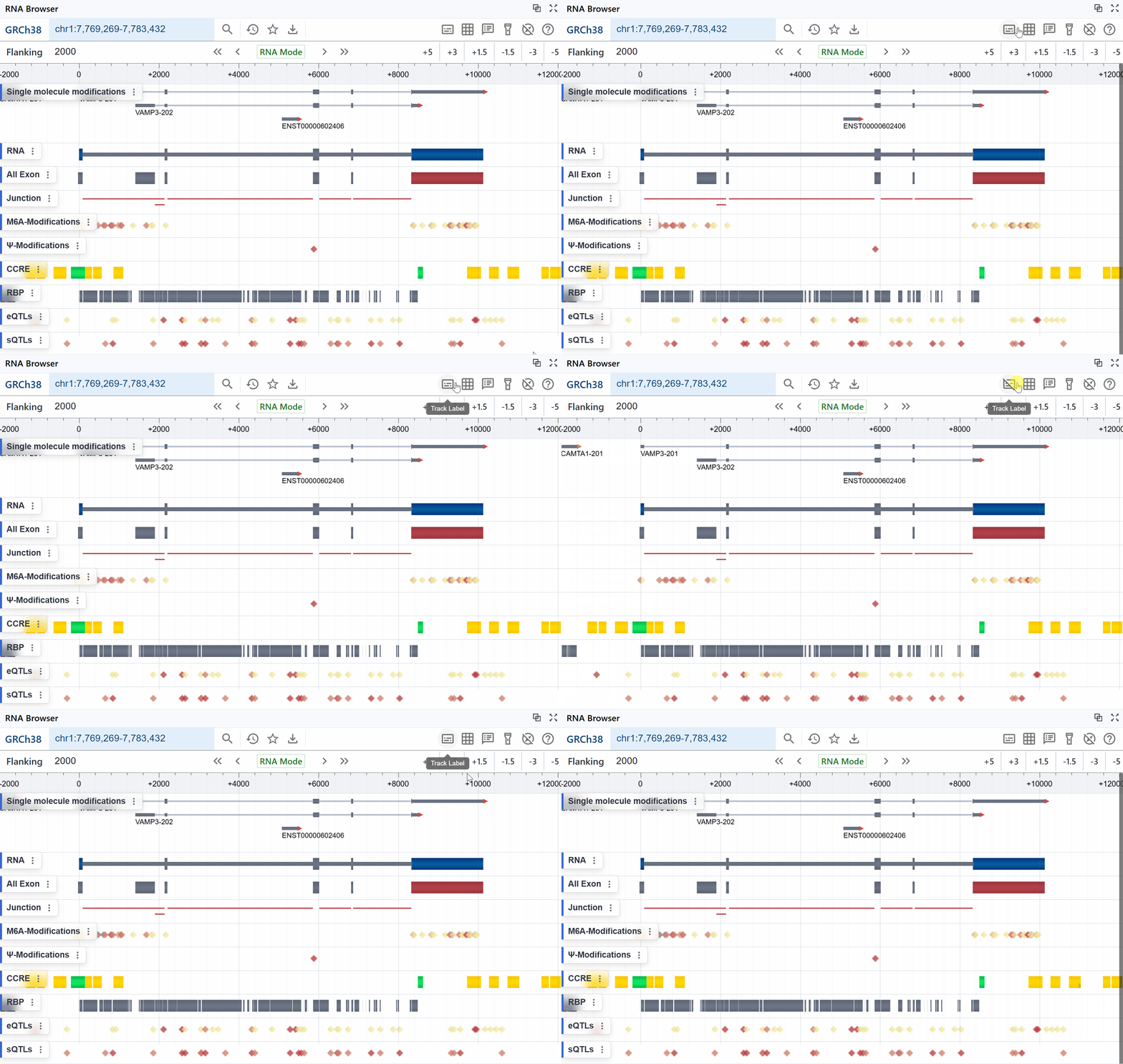
6. Track Label Toggle
Show or hide the left-hand track names panel.
-
Grid Toggle
Enable or disable the background grid lines.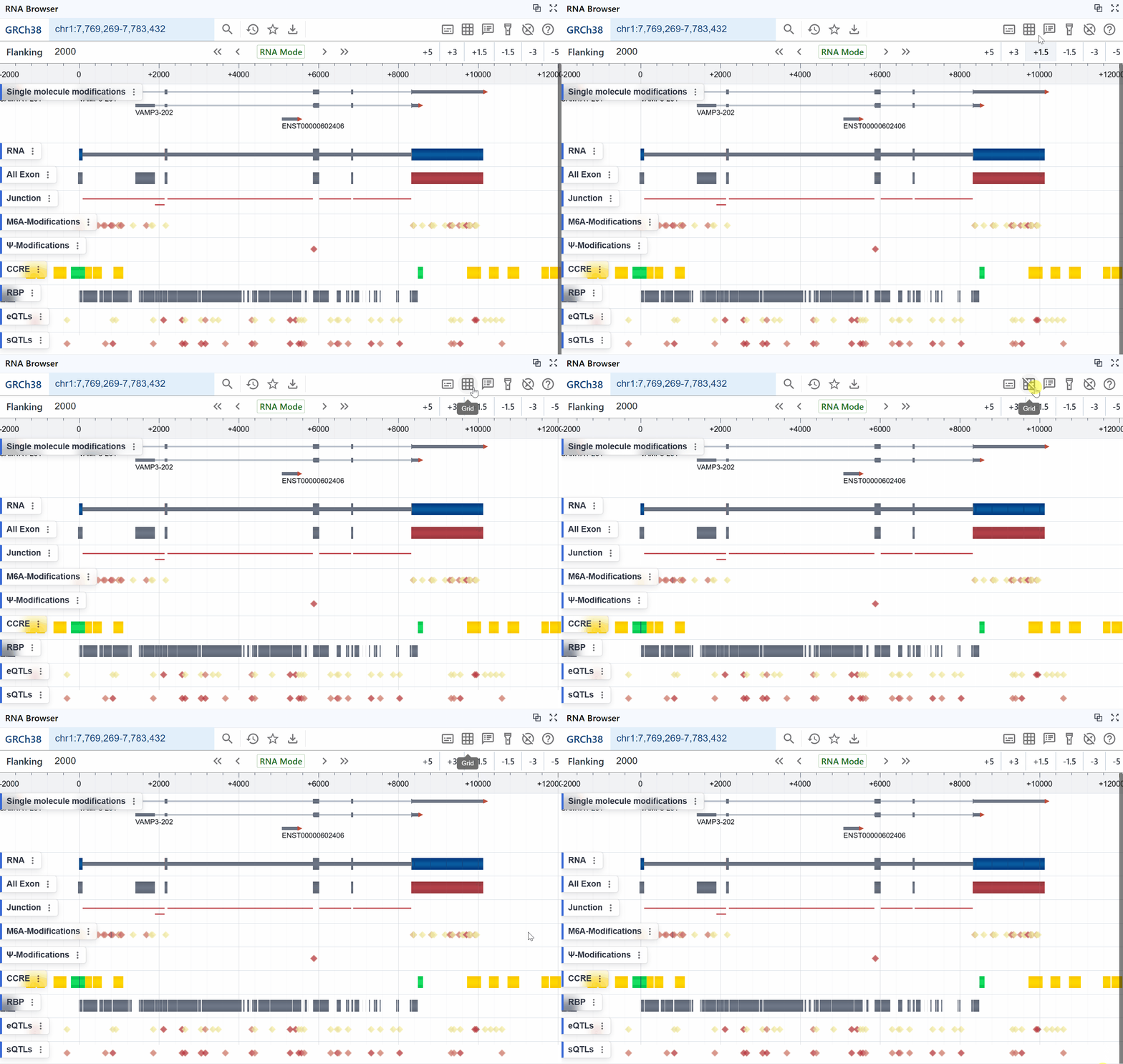
-
Tooltip Settings
Configure what information appears on hover.
-
Highlight Region Toggle
Show or hide the brushed selection overlay.

-
Cursor Settings
Switch pointer modes (pan, select, measure).
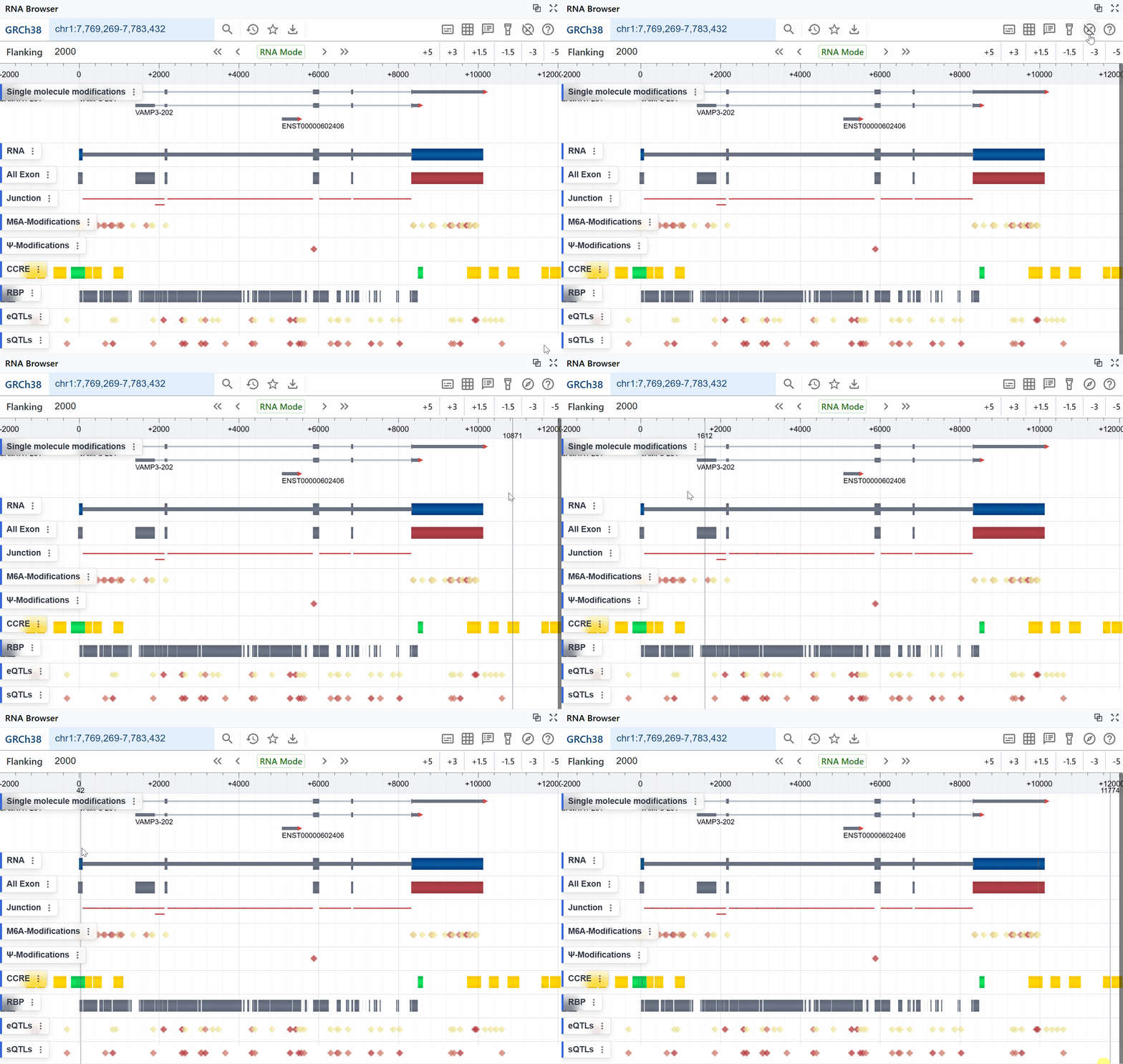
-
Help
Open contextual help and documentation.
Coordinate Adjustment Controls (Second Row)
- Flanking Width
Specify upstream/downstream padding around the region (e.g. ±2000 bp). - Coordinate System Switch
Toggle between DNA, RNA coordinate modes. - Zoom Presets
Quick scale buttons (e.g. +5×, +3×, +1.5×, –1.5×, –3×, –5×).
Track Label
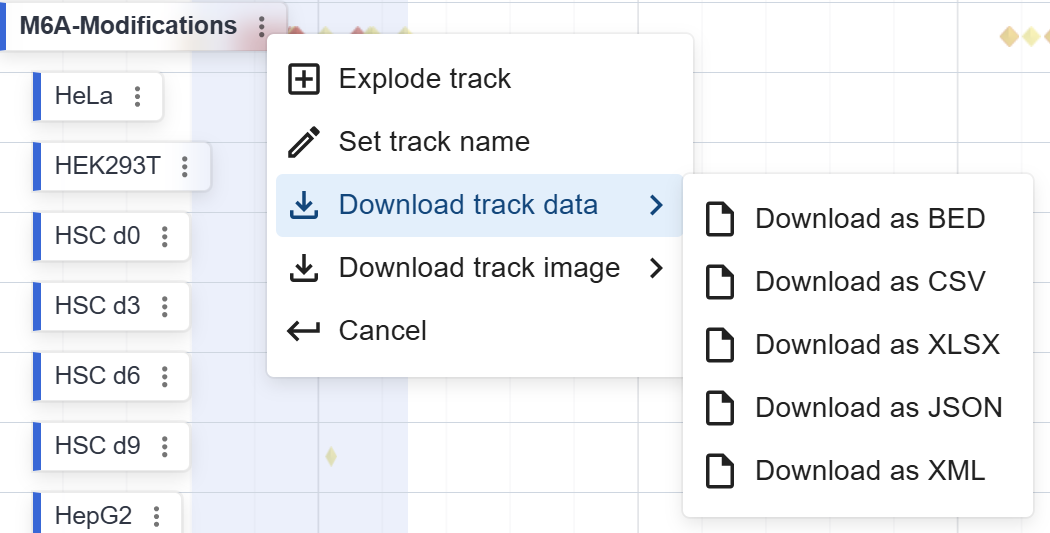
- Displays the name of each track (e.g. “M6A-Modifications”, “Junction”, “RNA”).
- Provides per-track settings: Explode, Name, Download.
Tips
This download provides only the data or image for this specific track in the current region, and you can choose different file formats to download based on your needs.
- Can be toggled on/off via the Track Label Toggle button in Primary Controls.
Additional Elements
- Axis
Shows the continuous coordinate scale (in bases or residues) along the top.
Adjusts dynamically to the selected DNA/RNA mode. - Tooltip
Hover over any feature to reveal a floating info box (e.g. feature name, coordinates, counts).
Configurable under Tooltip Settings. - Highlight Region
Click-and-drag to brush a selection; the shaded overlay indicates the active region for zooming or filtering.
Toggle visibility with the Highlight Region Toggle button.