Plugin System Overview
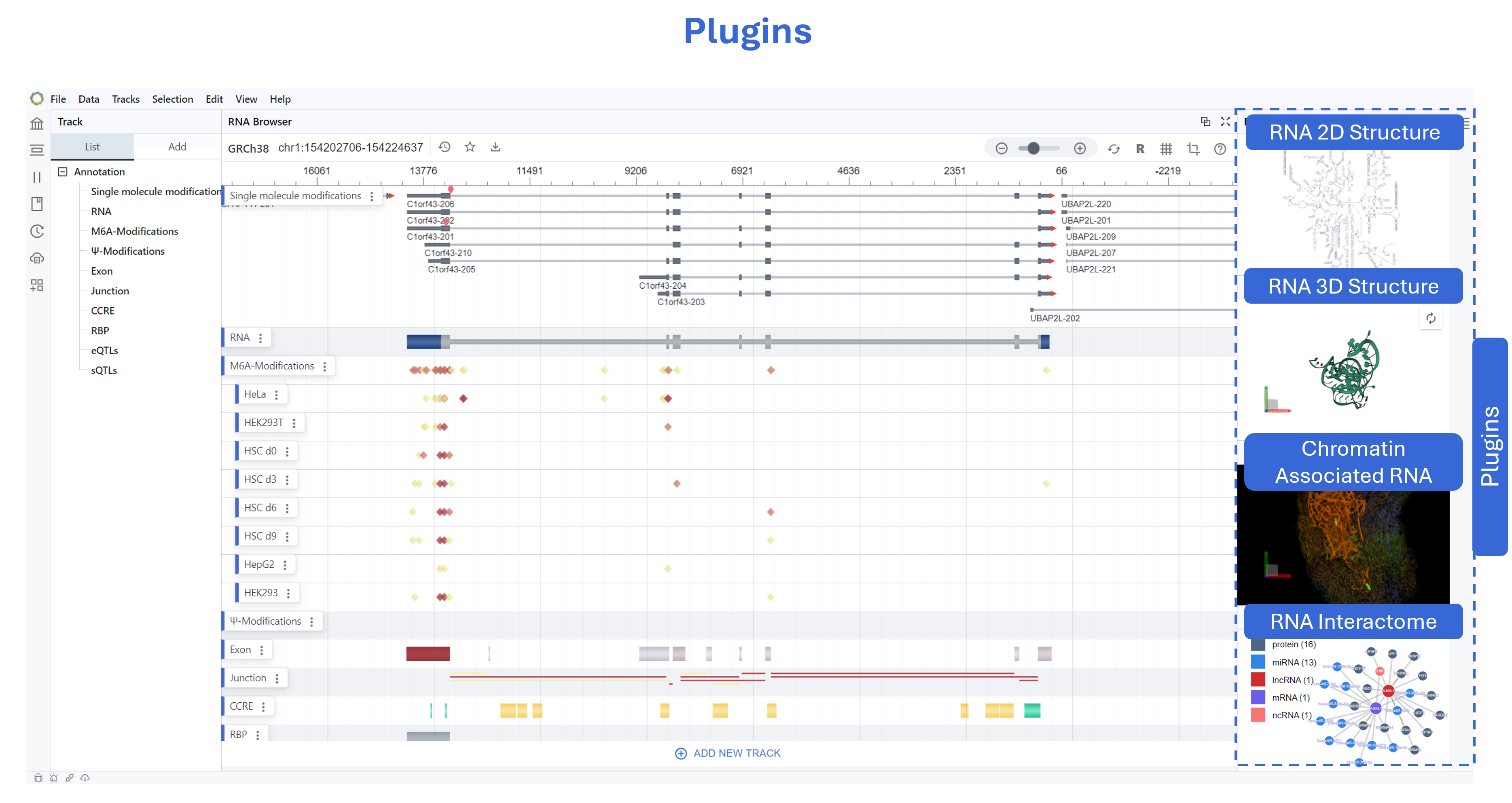
1. Introduction
RBrowser is designed with a modular and extensible architecture, allowing researchers and developer to customize their analysis pipelines and integrate third-party tools. One of the key advantages of this design is the ability for different modules to communicate asynchronously, ensuring a seamless and integrated analysis experience. For example, selected linear track signals from transcriptome views can be dynamically displayed in RNA Structure or 3D Genome modules, enabling real-time visualization of transcriptomic features across multiple structural contexts. Key advantages include: Microkernel-Based Plugin System – Enables seamless addition of new functionalities without affecting core browser viewer performance. - Independent Module Loading – Users can selectively load specific analysis tools for RNA structure, RNA modification analysis, or transcript quantification. Asynchronous Data Transmission Between Modules – Allows seamless interaction between different visualization layers, ensuring that selected transcript regions can be mapped across linear, secondary, and 3D genome contexts.
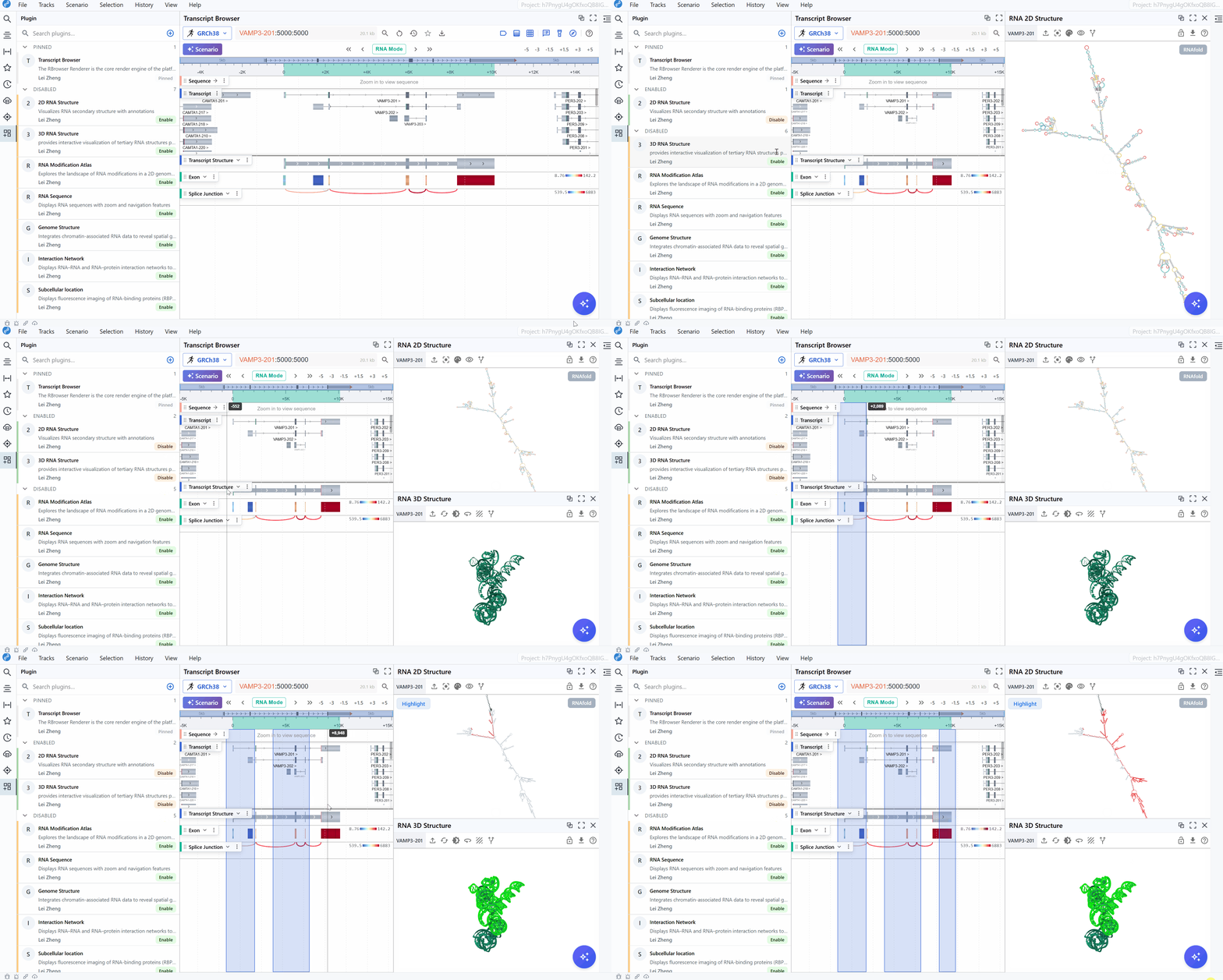
2. Dynamic Synchronization Across Plugins
You can select a region of interest, and the plugins will automatically synchronize data dynamically.
RBrowser also supports mapping signal values (m⁶A, m⁵C, RNA structure probing, etc.) from tracks to plugin renderers.
It enables synchronization of transcript, gene, and other related data across all plugins without affecting the main application's performance.
3. Plugin Management
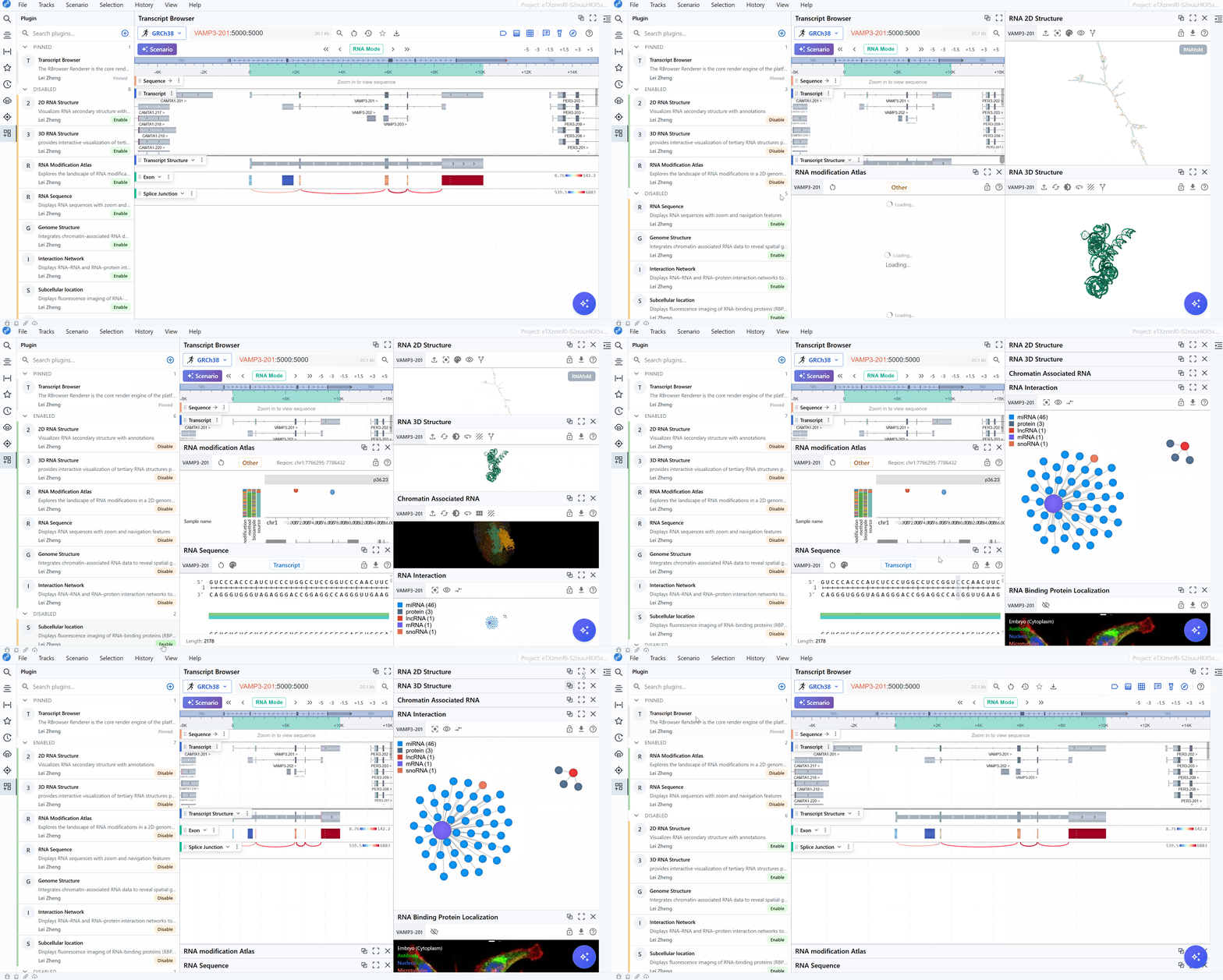
3.1 Plugin Enable/Disable
Open the plugin panel from the left sidebar, where you can view plugin names, brief descriptions, authors, and more.
Click the enable status button in the bottom right to load the corresponding module into the rendering queue.
To remove a plugin, simply click the disable status button.
3.2 Plugin Install
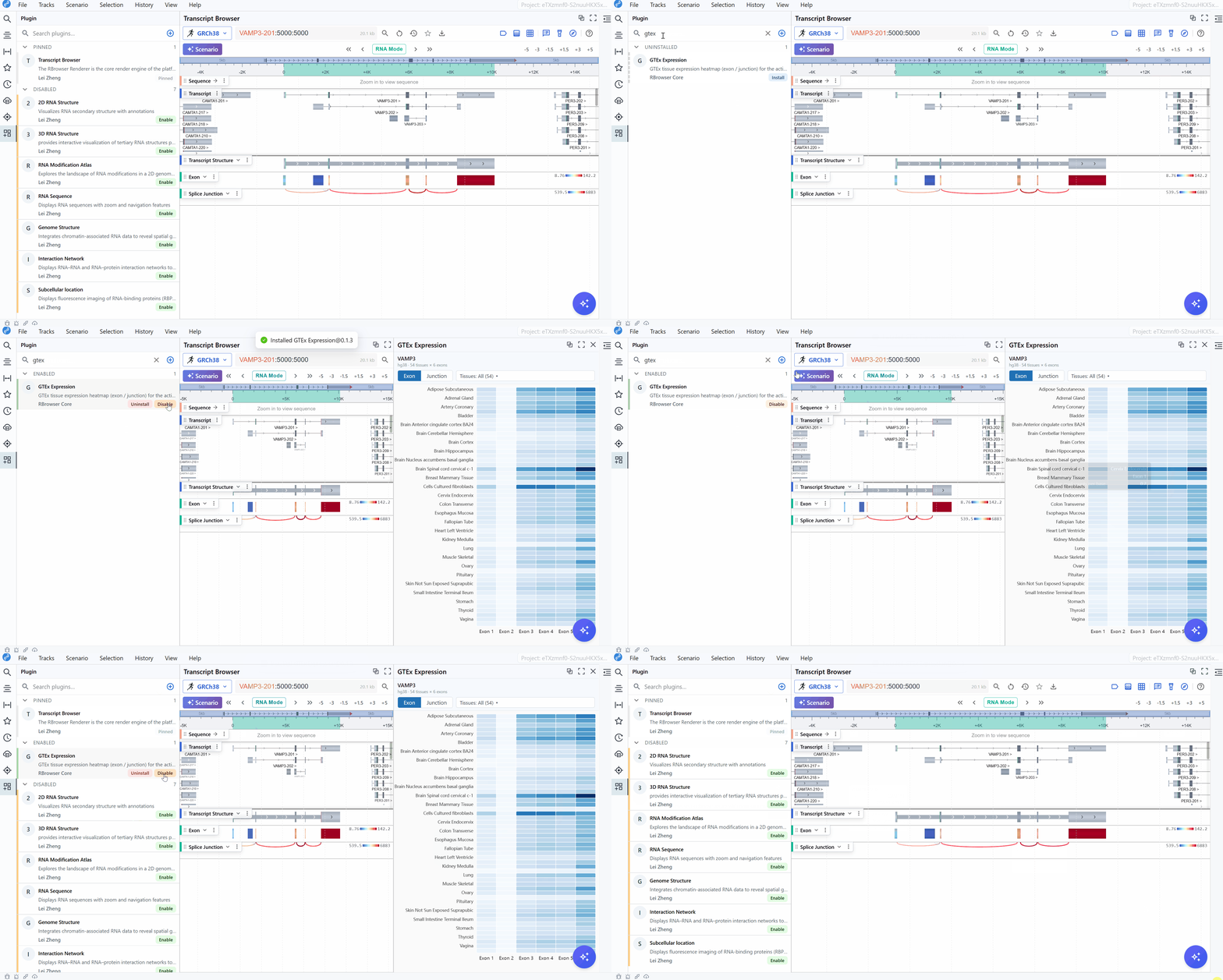
RBrowser provides four ways to install plugins:
-
Official Plugin Repository
Search for the plugin directly in the Plugin Store, then click Install.
-
Drag and Drop
The simplest way is to drag and drop a local
.rbpfile directly into RBrowser.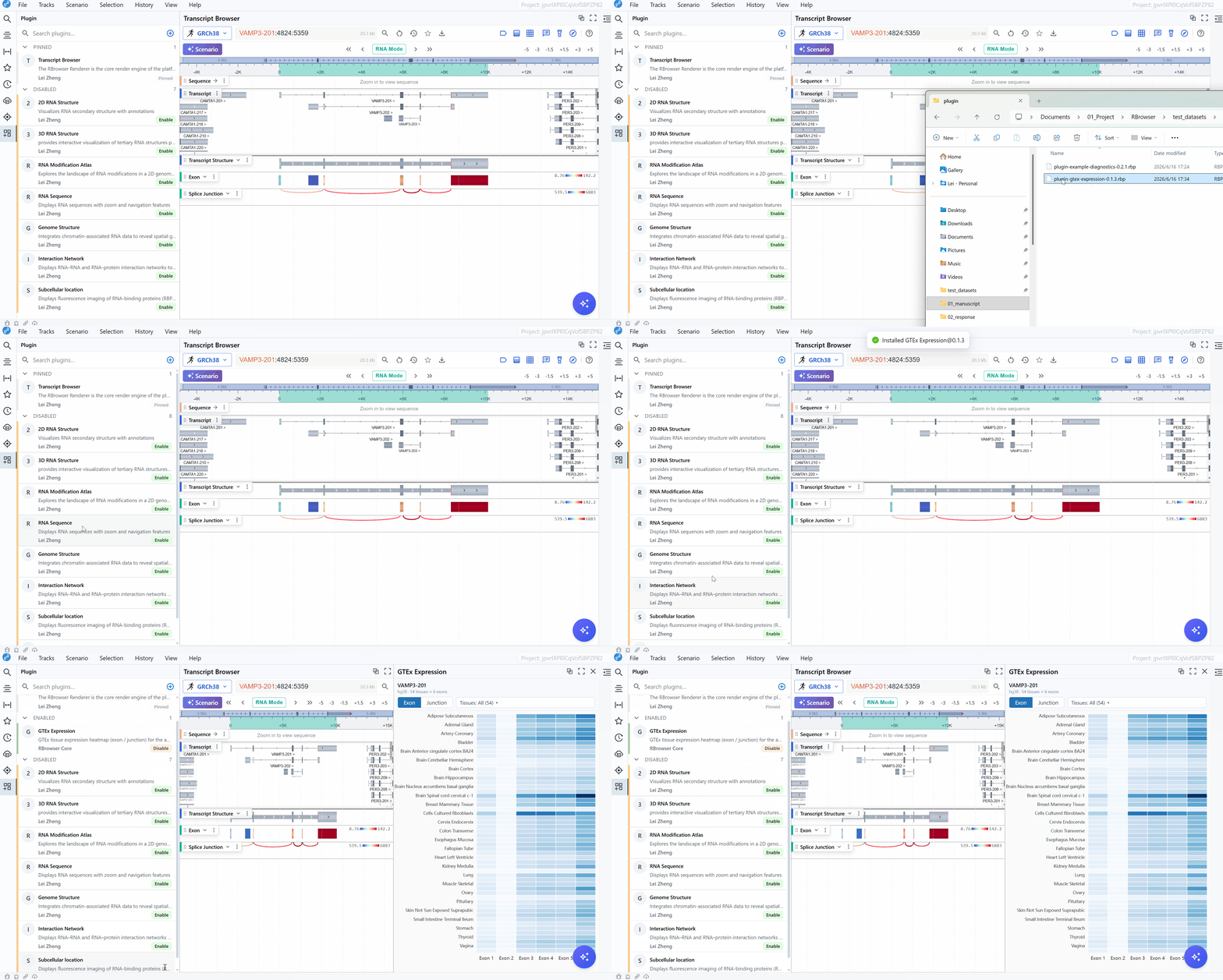
-
Local File
Click the button in the upper-right corner of the Plugin Store, then select Install from Local File to load an
.rbpRBrowser Plugin package.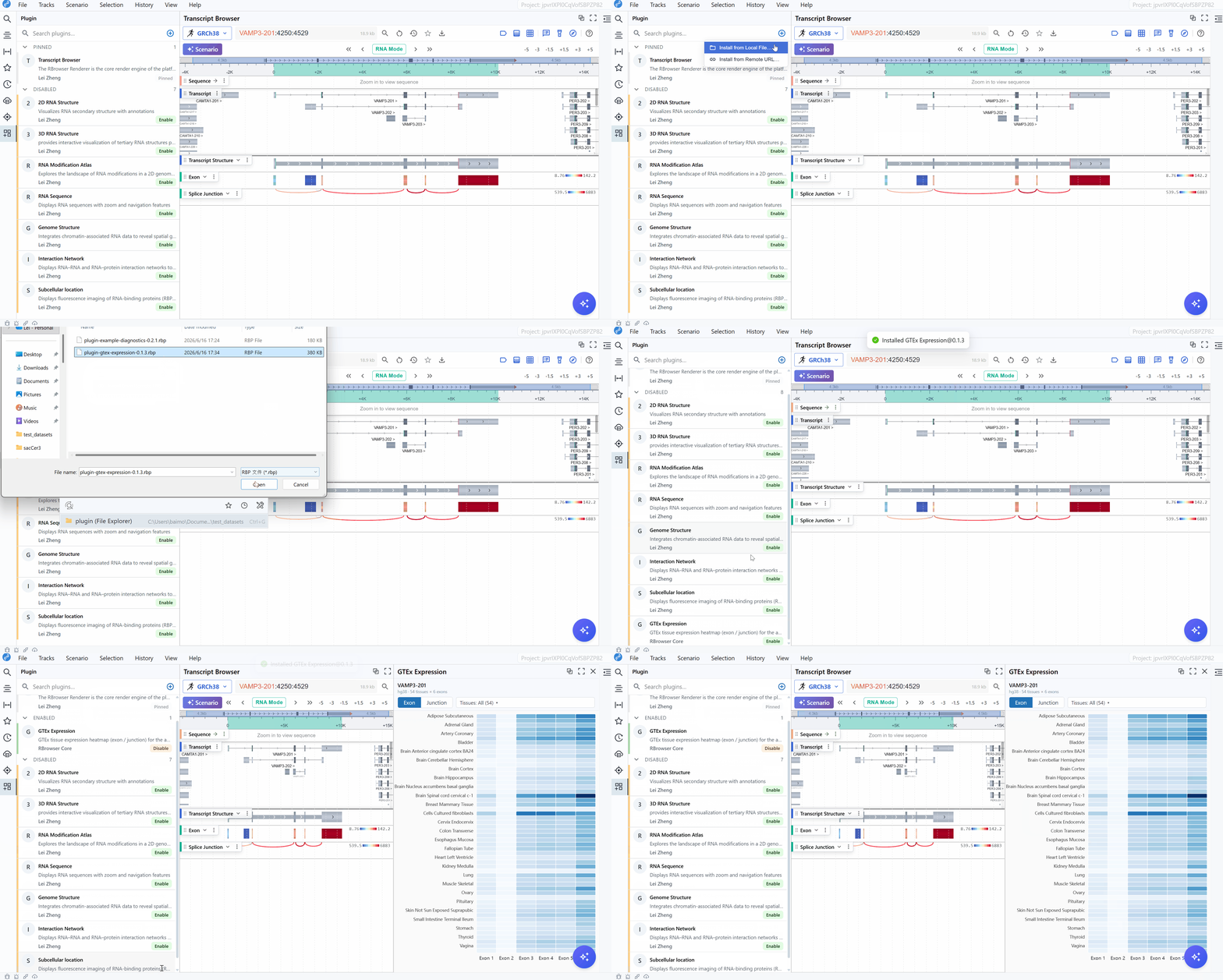
-
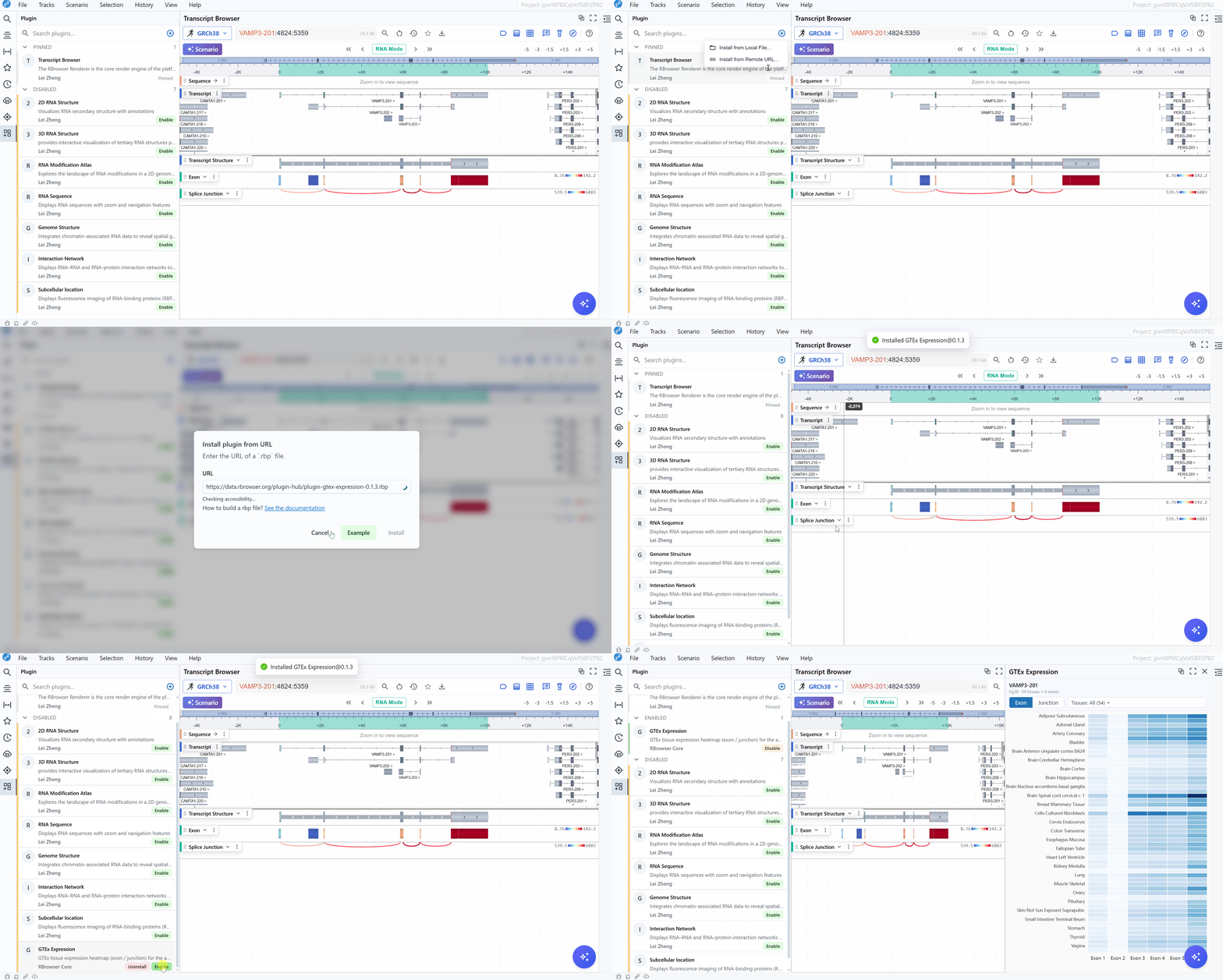
Remote File
Click Install from Remote File to load an
.rbpRBrowser Plugin package from a remote URL. You can click Example to load a sample plugin package, or provide a third-party remote URL.
Warning
Please note that third-party .rbp packages may need to be verified. For security reasons, we recommend using official plugins whenever possible.
3.3 Plugin Uninstall
To uninstall a plugin, hover over the plugin item, then click the Uninstall button when it appears. Please note that core plugins cannot be uninstalled.
3. Plugin Development
We provide the RBrowser Software Development Kit (SDK), along with development examples, to help you build your own plugins.