RBrowser Main Viewer
Navigation
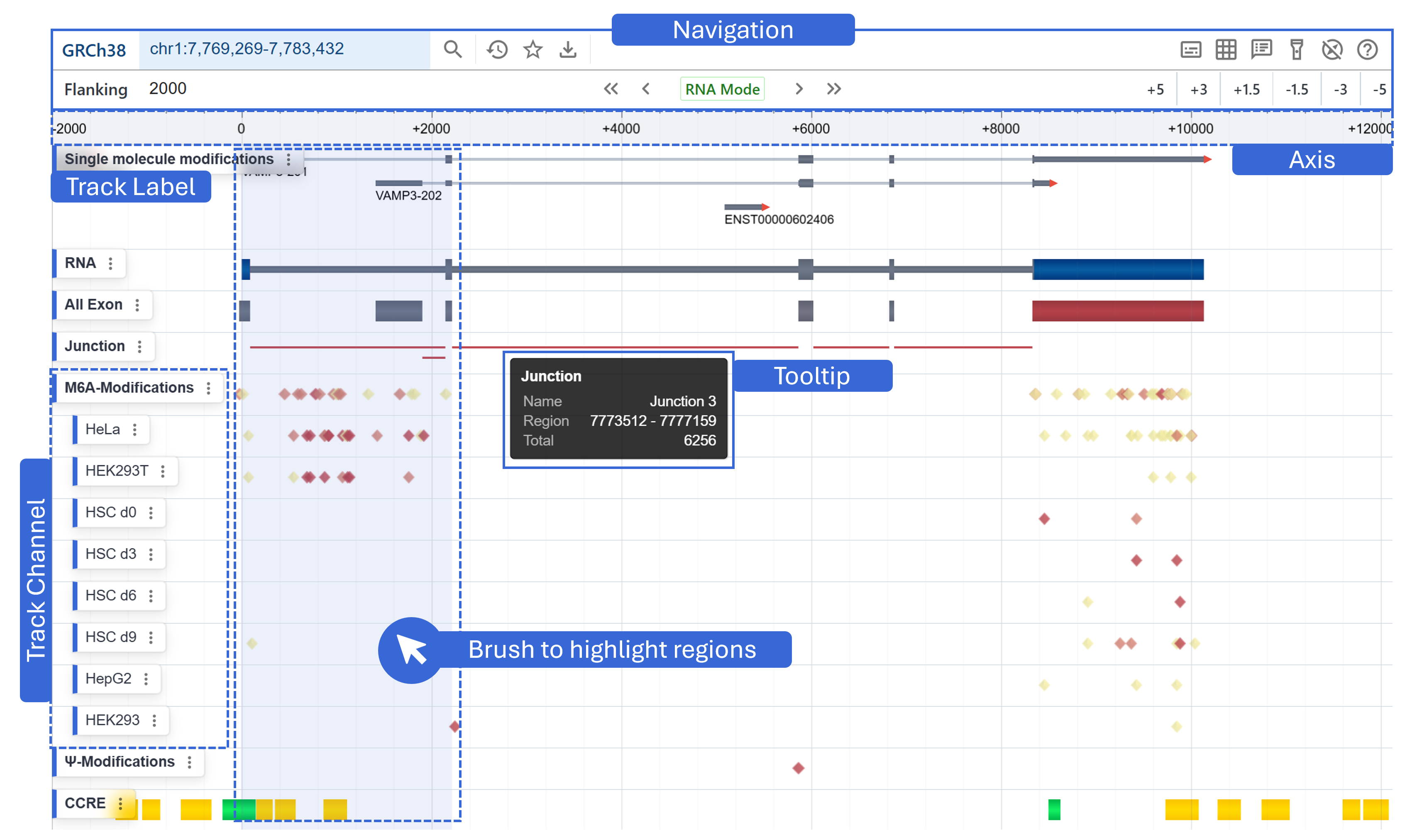
The Navigation panel is organized into two horizontal tiers for efficient, contextual control:
Primary Controls (Left)

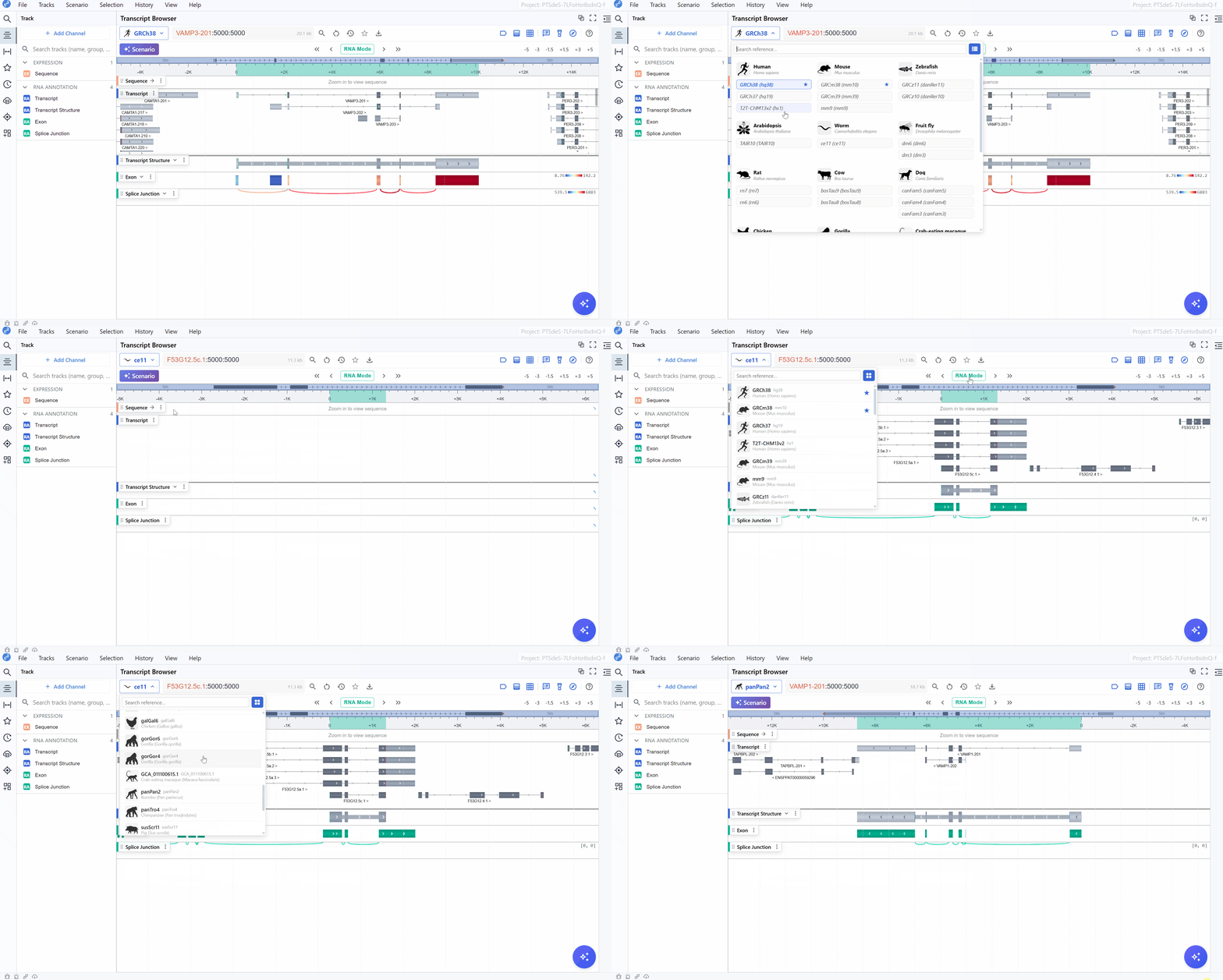
- Switch Reference
Displays the current reference assembly (e.g. GRCh38).
Tips
How to add custom reference?
You can use Refbox to generate the required files:
Document:Refbox
You need to build:
-
Annotation files: gtf.gz and gff3.gz
-
Transcript index: .rba or .rbi files
-
Genome sequence: genome.fa.gz, genome.fa.gz.fai, genome.fa.gz.gzi
-
Set remote reference:
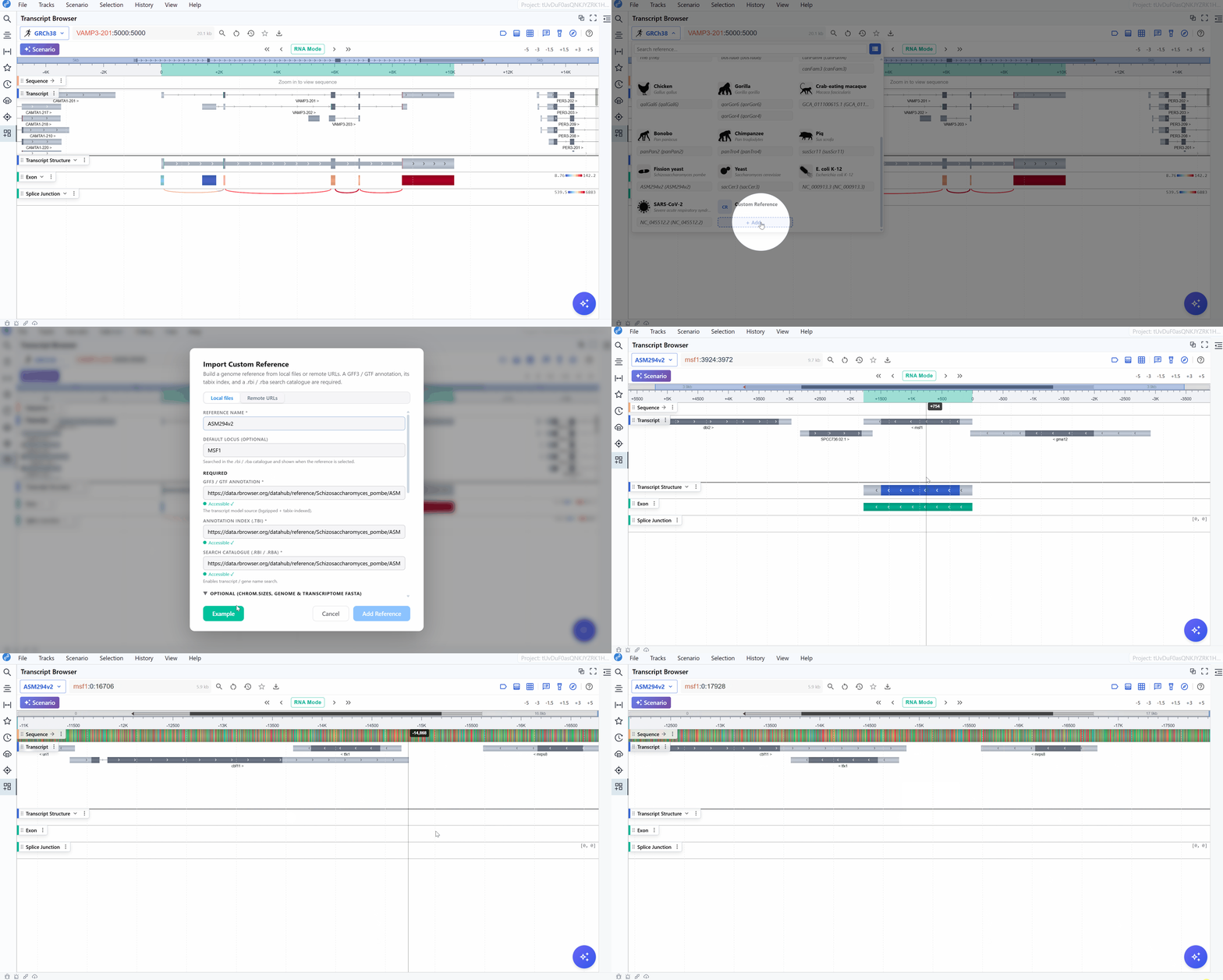
-
Set local reference:
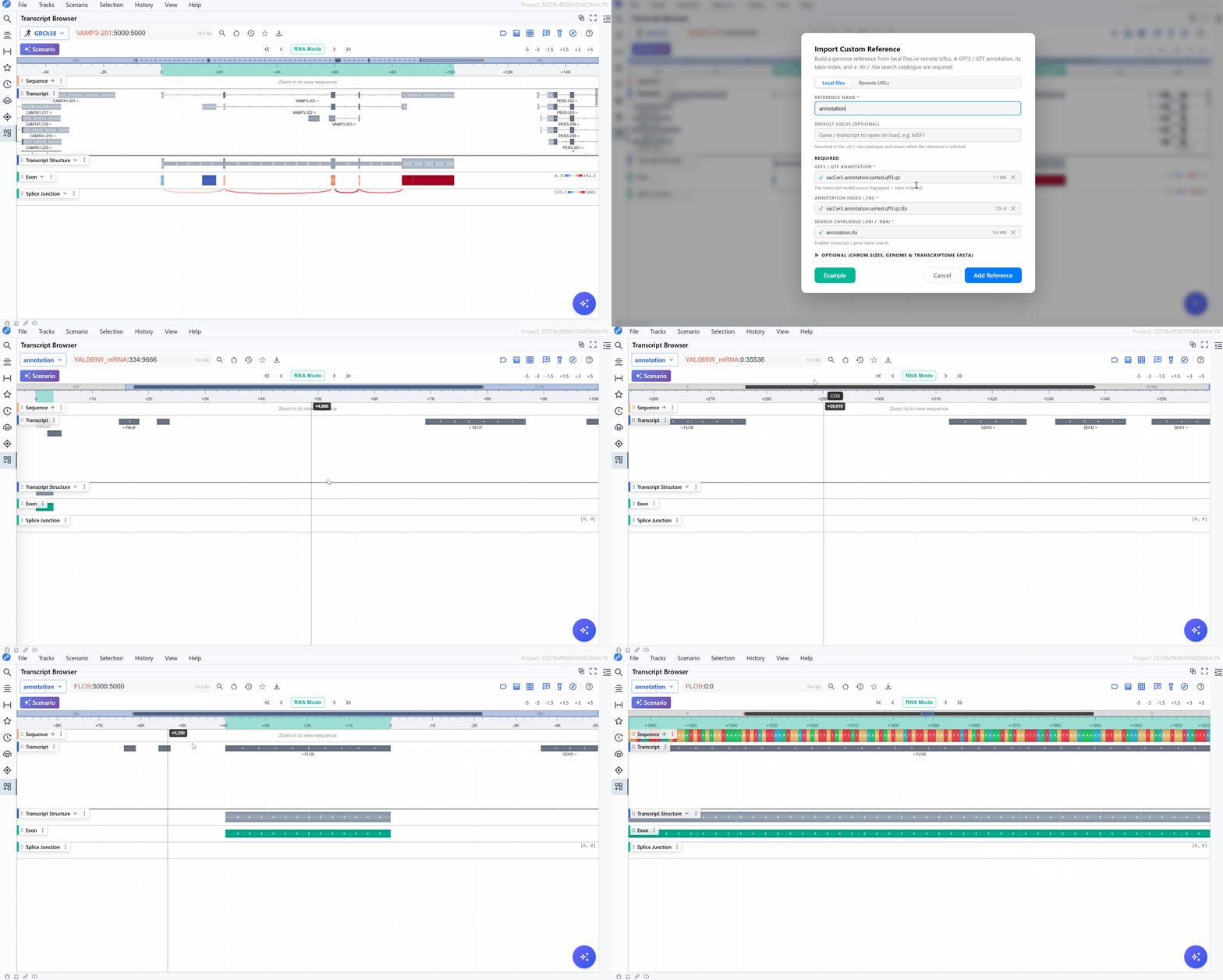
-
Search locus
Enter gene names, transcript names for instant lookup. After entering your query, press Enter or click to search.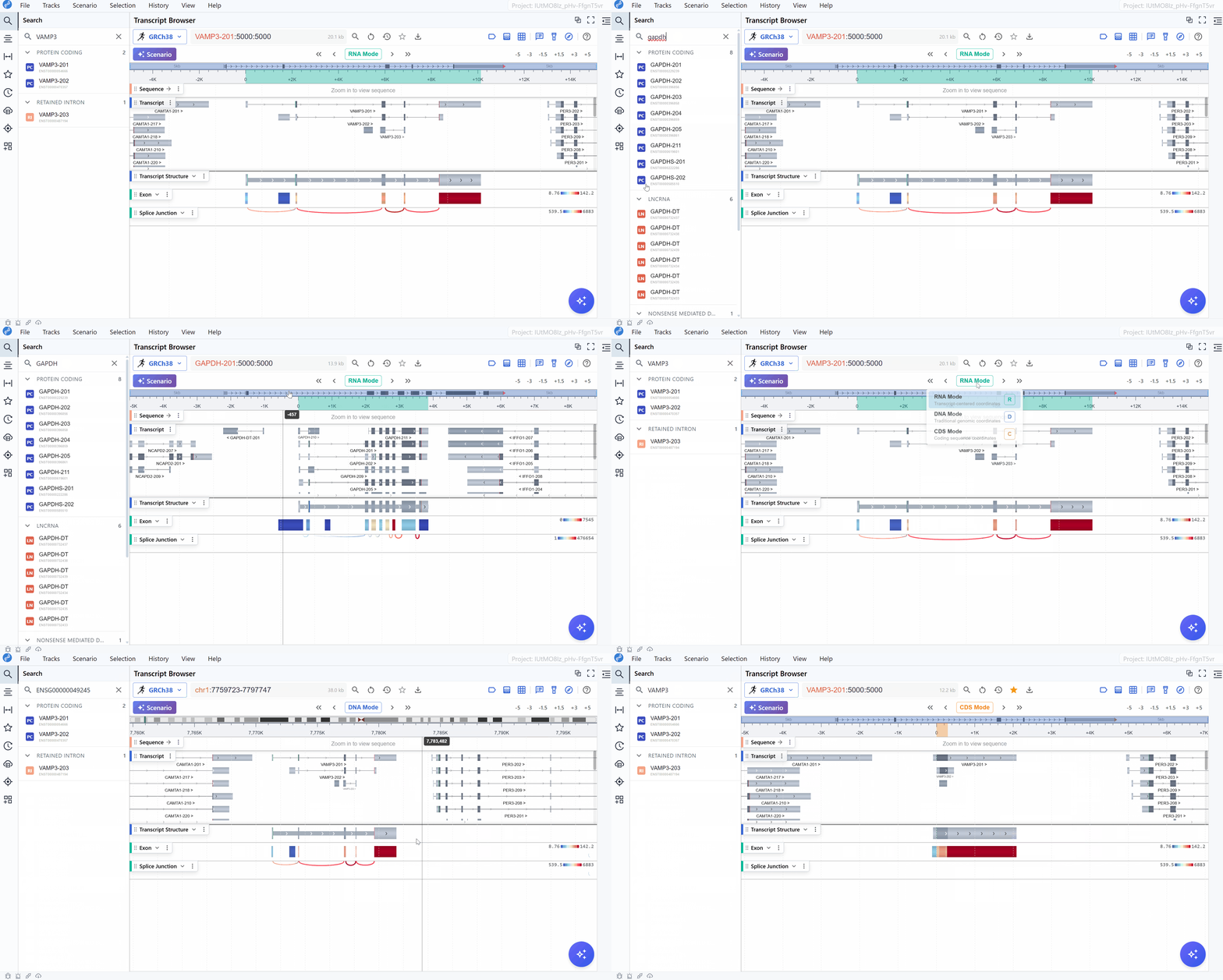
A better way is to open the left sidebar and search by transcript name, gene name, or transcript ID. Results are grouped by transcript type — click the arrow on the left to expand a group, or click a transcript directly to render it.
-
History
Access a drop-down of recently navigated regions. - Bookmark
Save or recall custom favorite transcripts. - Download
Export the tracks images. - Track Label Toggle
Show or hide the left-hand track names panel.
Primary Controls (Right)
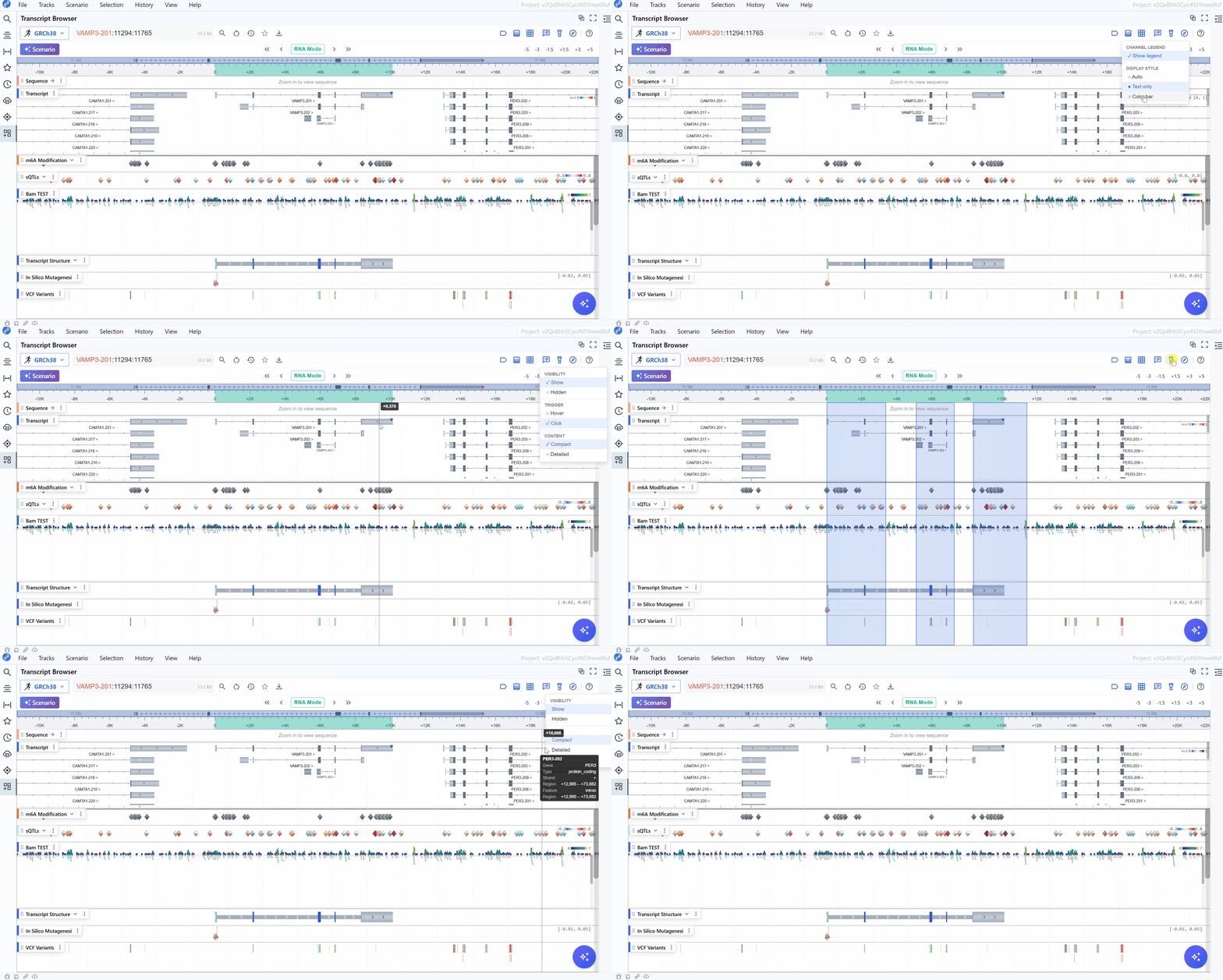
-
Label Toggle
Enable or disable the track labels. -
Legend Toggle
Enable or disable the track legend. -
Grid Toggle
Enable or disable the background grid lines. -
Tooltip Settings
Configure what information appears on hover. -
Highlight Region Toggle
Show or hide the brushed selection overlay. -
Cursor Settings
Switch pointer modes (pan, select, measure). -
Help
Open contextual help and documentation.
Coordinate Adjustment Controls (Second Row)

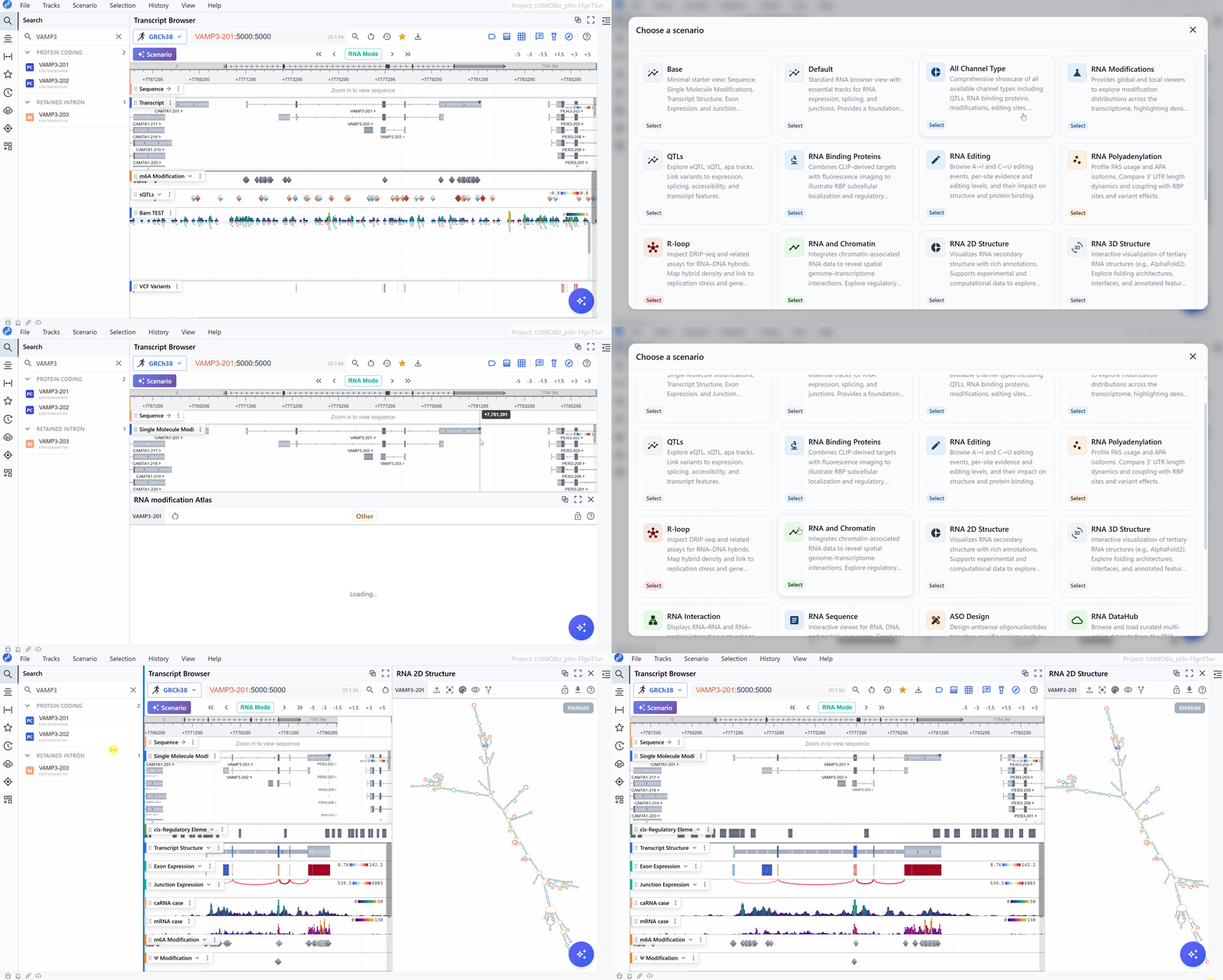
- Scenario
Scenarios provide preset RNA-centric research workflows. For each scenario, RBrowser automatically activates the appropriate plugins and DataHub datasets, helping users quickly get started without a steep learning curve.
-
Coordinate System
Toggle between RNA, DNA, CDS coordinate modes. -
Movement
Click the arrow buttons to move left or right along the track. You can also use the keyboard shortcut: Left Arrow and Right Arrow. -
Zoom in/out
Quick scale buttons (e.g. –5, –3, –1.5, +1.5, +3, +5). Scroll the middle mouse wheel to quickly zoom in or out.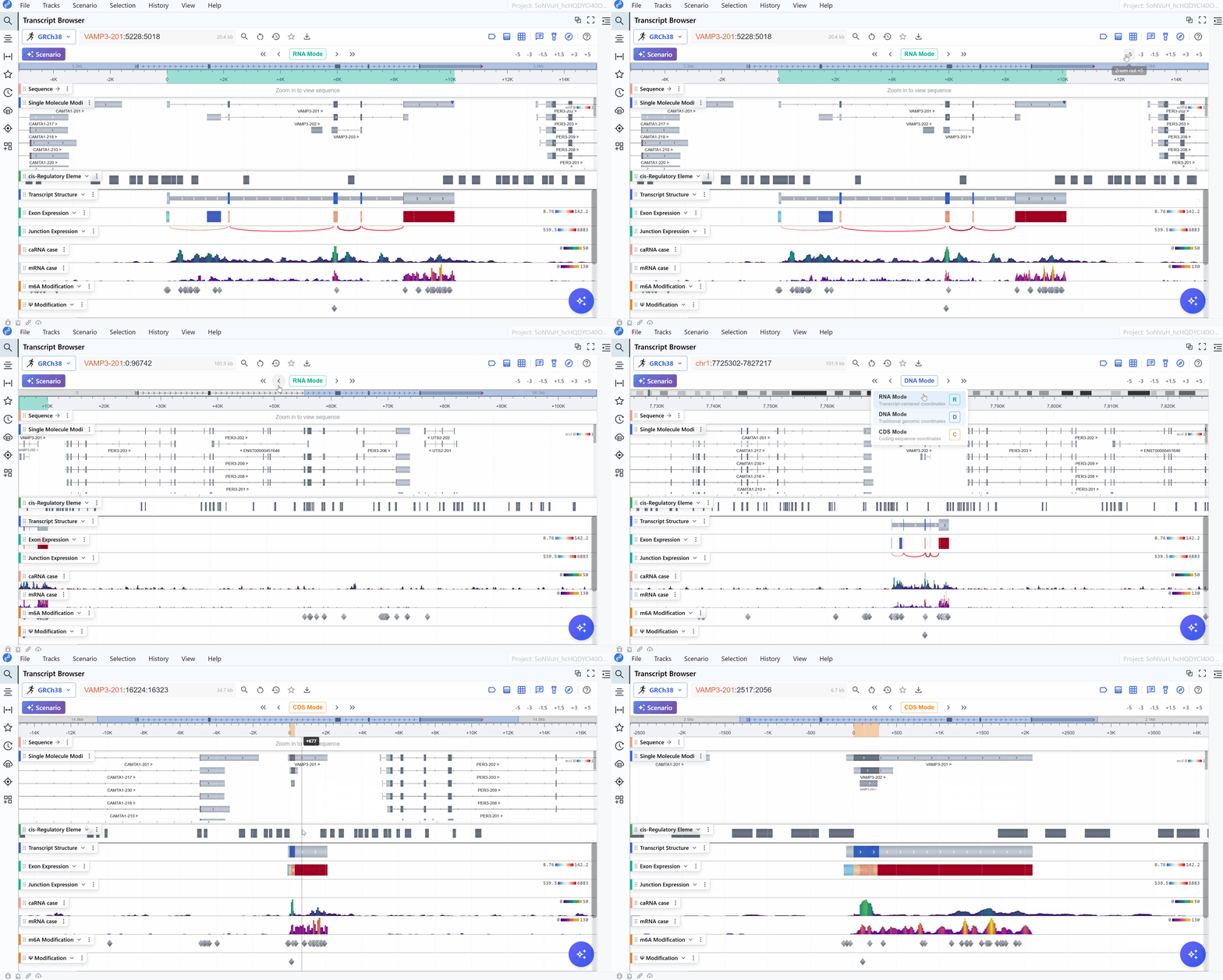
Tips
To scroll vertically instead of zooming, hold Ctrl while scrolling the mouse wheel.
Track Settings
- Displays the name of each track (e.g. “M6A-Modifications”, “Junction”, “RNA”).
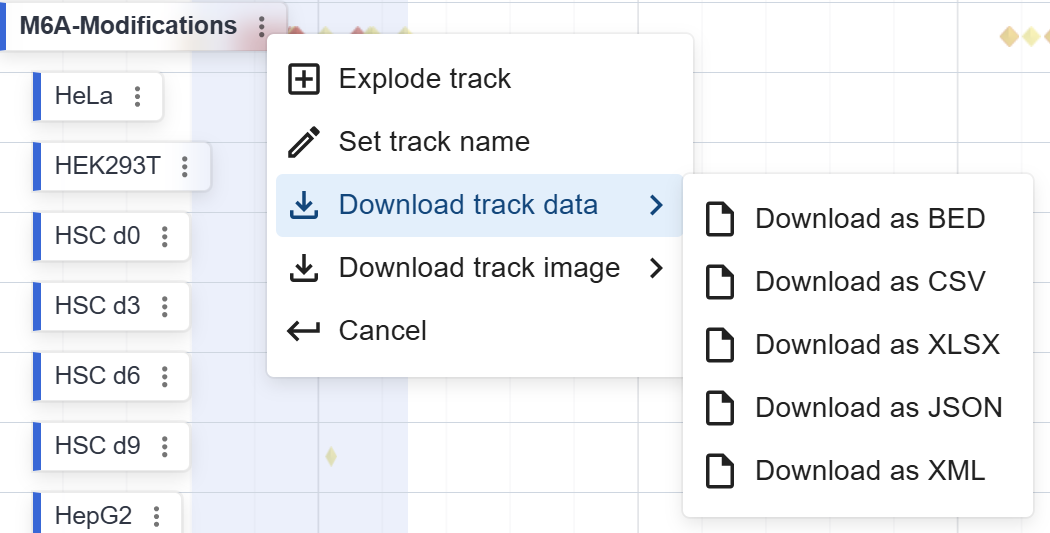
- Provides per-track settings: Explode, Name, Download.
Tips
This download provides only the data or image for this specific track in the current region, and you can choose different file formats to download based on your needs.