Access & Install
There are two ways to access RBrowser — pick the one that matches your workflow.
1. Web access
The fastest way to get started, with no installation required. Open RBrowser in your browser and start exploring immediately.
When to use web access
- Quickest access — open and start exploring in seconds
- Nothing to install — runs entirely in the browser
- Runs on any system — any modern browser, any OS
2. Command-line (CLI) access
Run RBrowser from your terminal to view data directly on the system where it lives — without copying it anywhere first.
When to use the CLI
- Access across machines & systems — browse data wherever it sits
- No local downloads — no need to pull large datasets onto your machine
- Secure remote access — reach remote servers and HPC clusters safely
Prerequisites
The CLI runs on a basic Python or Node.js (npm) environment. If you already have one, skip ahead to the install steps.
Install Python 3.9+ from python.org, or via Miniconda. Then verify:
Install the Node.js LTS release from nodejs.org (npm is bundled). Then verify:
Install and run
Install the CLI, serve a folder, and open the URL it prints — three steps.
open . serves the current directory; pass any path to serve it instead (open /data/myproject). The data stays in place — only the view is opened in your browser.
Usage Example 1:
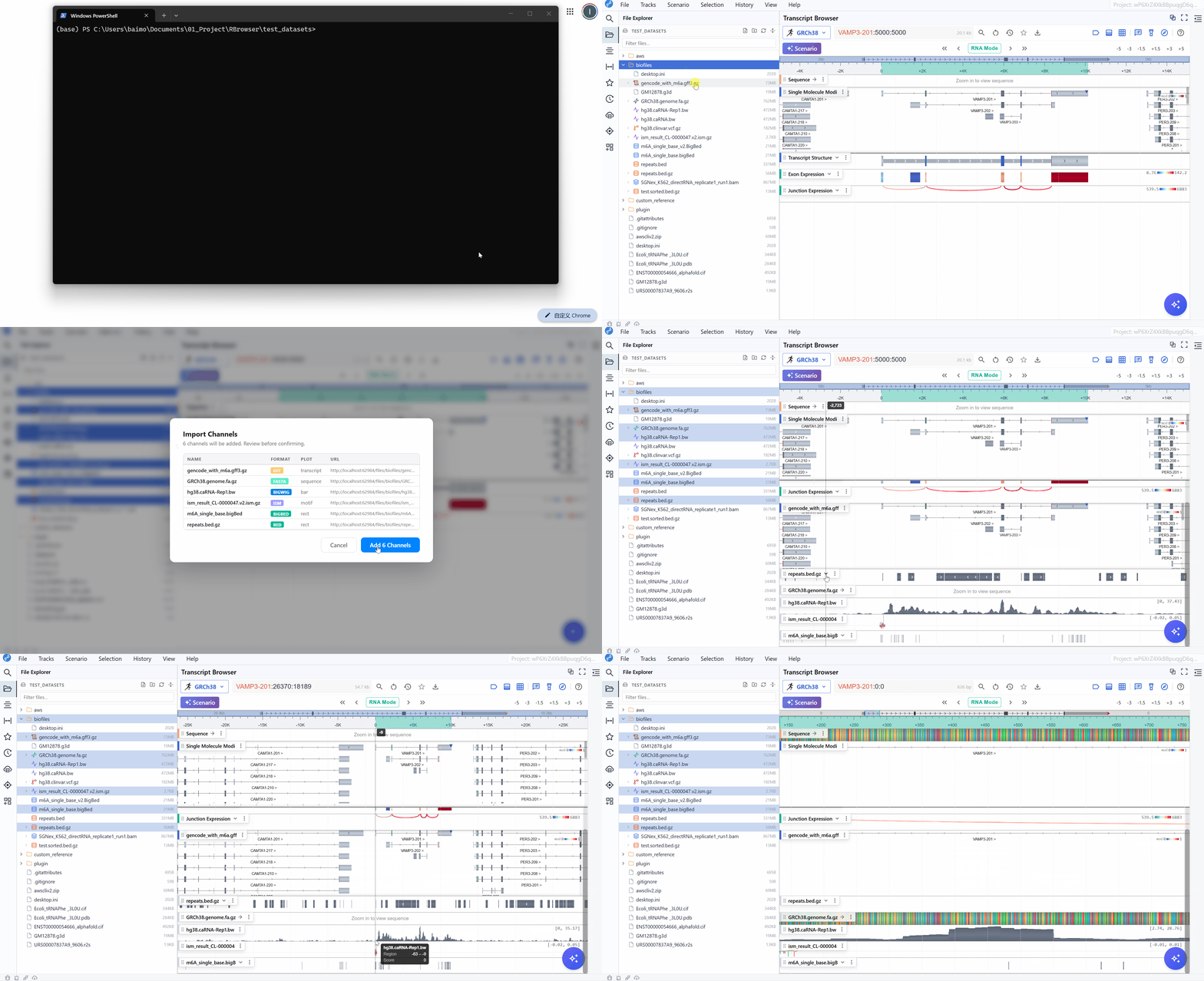
Start RBrowser via the command line and load common Tracks and Channels:
Usage Example 2:
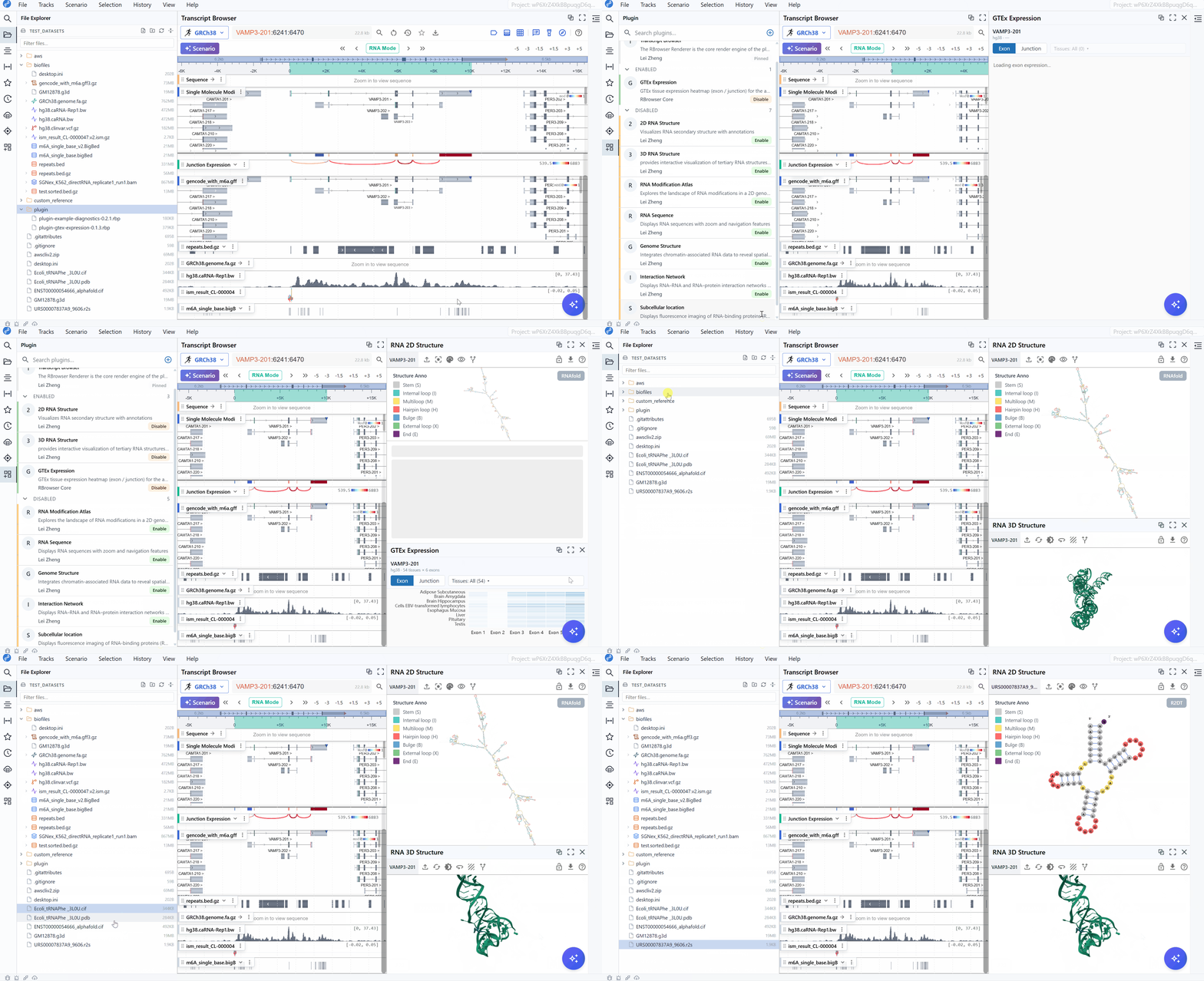
Start RBrowser via the command line, install plugins, and load plugin-required data: