Channel and Track
Channel and Track Panel
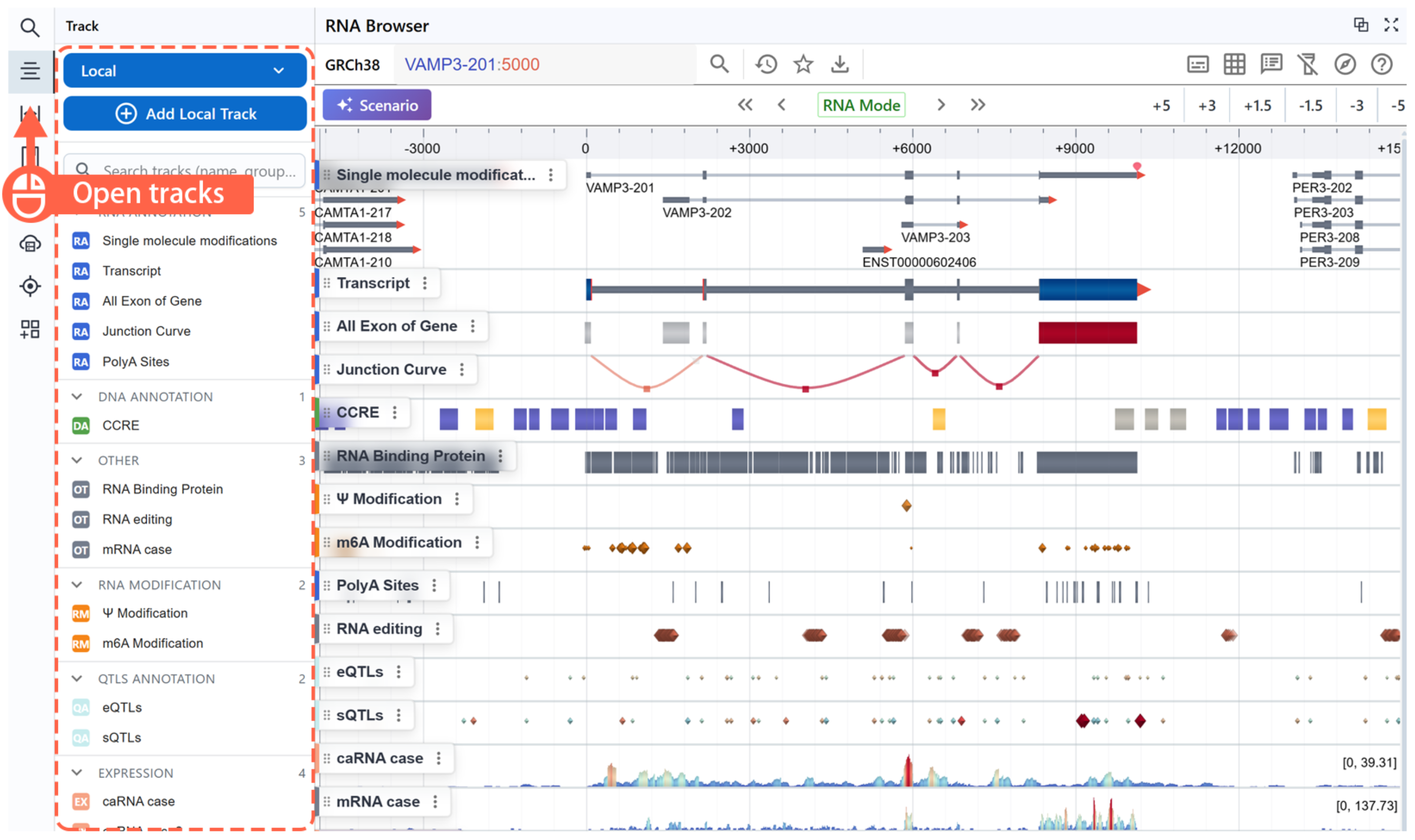
- You can click the Track Panel on the left to view and manage all channels and tracks.
- A Channel contains a predefined set of tracks grouped by data type.
Expand Channel
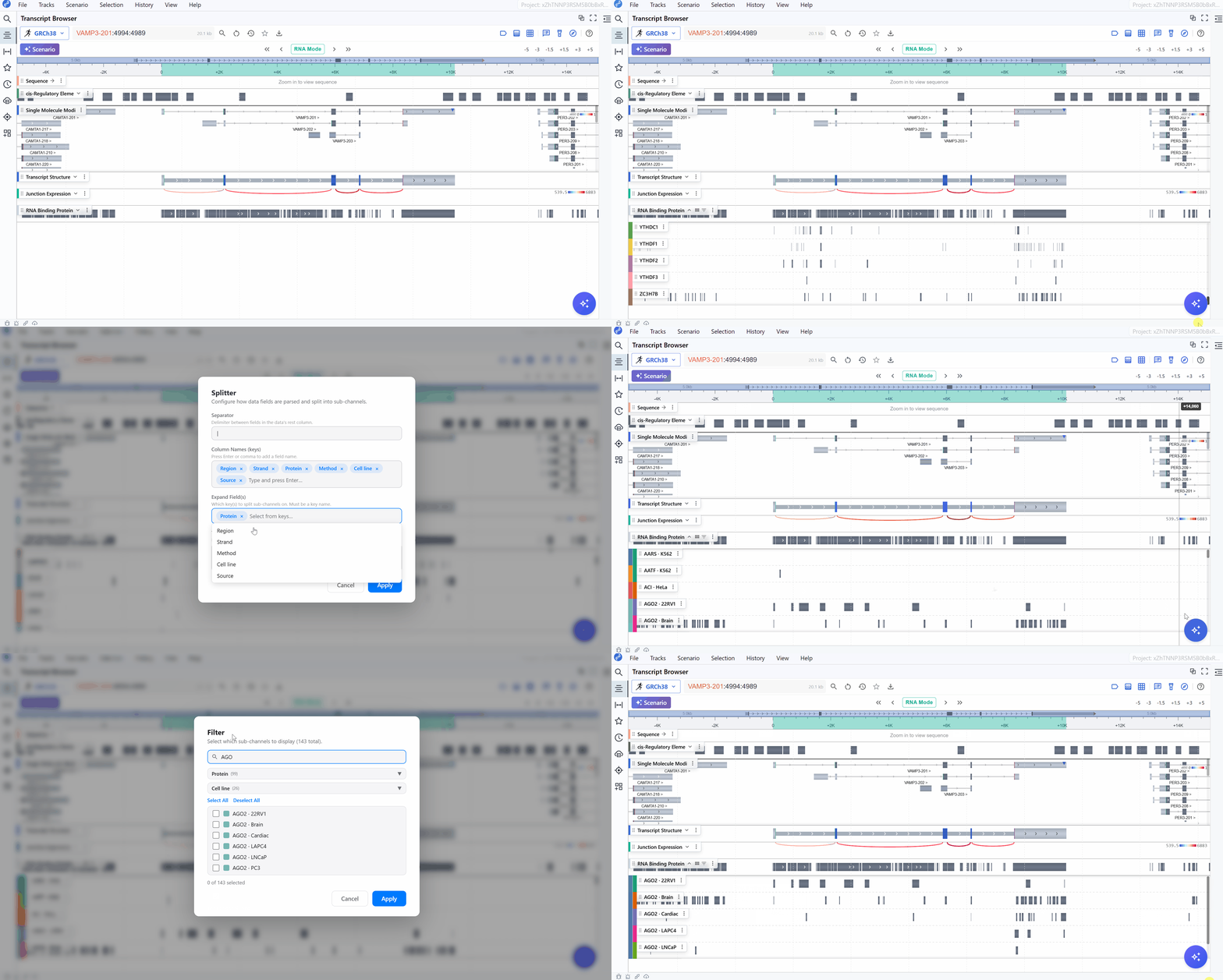
A channel may contain multiple individual tracks. To expand a channel and view all its tracks:
-
Split Track in Channel
Each track in a channel contains multiple attributes. You can split or organize signals based on your needs. For example, you can generate a track list by RNA-binding protein or cell line. The number shown on the far left of each track indicates the total number of features in that track. The track label displays the corresponding attributes. -
Search Track in Channel
You can search for specific tracks within a channel by keyword. This feature will allow you to quickly locate tracks of interest.
Load Track
-
Open the Track Panel
Click the Track button in the left sidebar to open the track operations panel. You can choose different track loading methods depending on your needs. -
Choose Local Files
Use the file loader to import data from your local computer.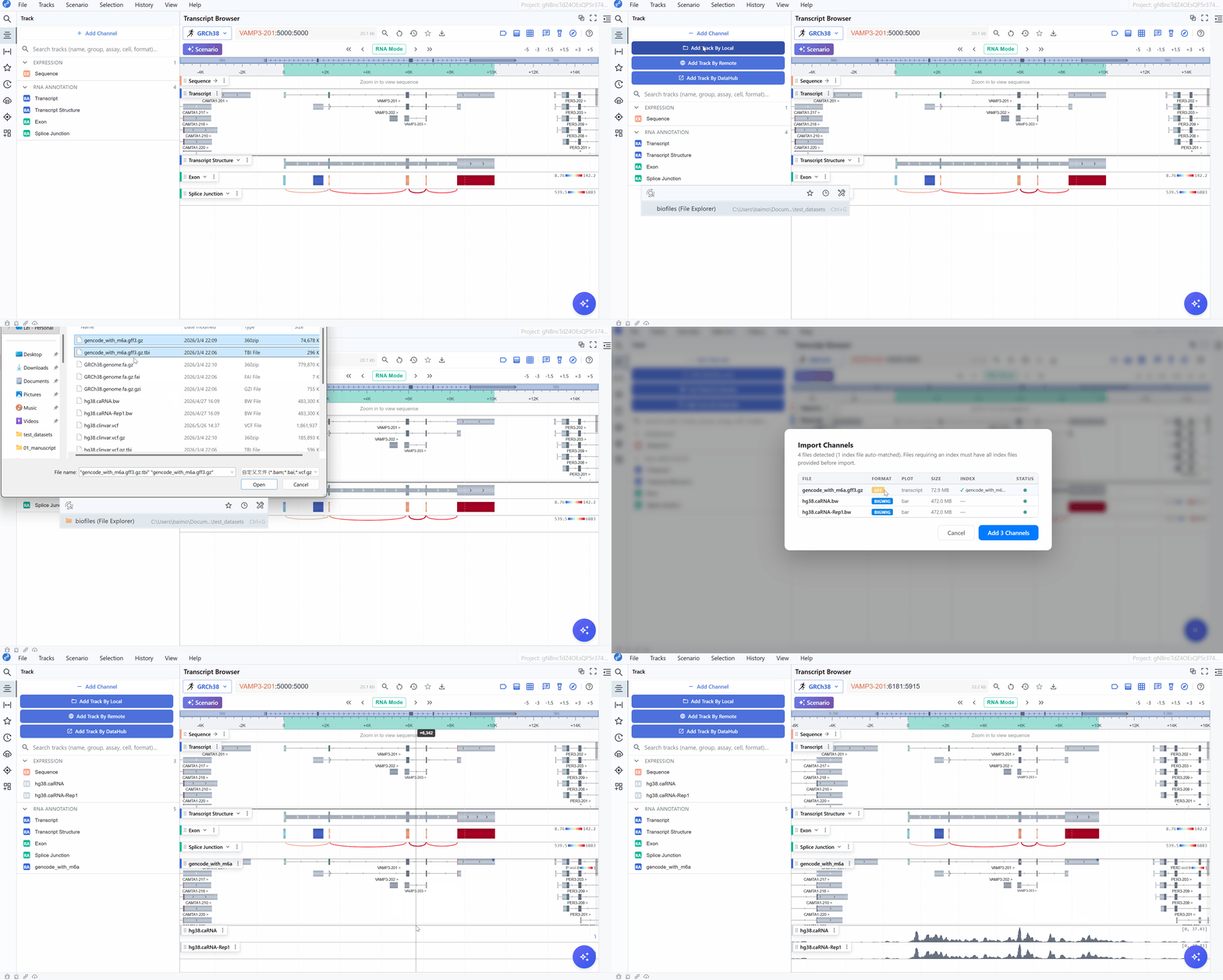
Warning
To protect user privacy, local files are not uploaded to the RBrowser backend. Instead, they are parsed and rendered directly in the local browser environment. Loading and visualization speed mainly depends on file size, local disk speed, browser performance, and, for remote files, network bandwidth. Modern browsers, such as Chrome, do not allow persistent access to locally loaded files after a session is saved. Therefore, if you need to preserve and reopen a session, we recommend loading tracks from Remote or DataHub instead of local files.
-
Drag Local Files
Drag and drop files directly into the RBrowser Main Viewer — they’ll be automatically parsed and rendered.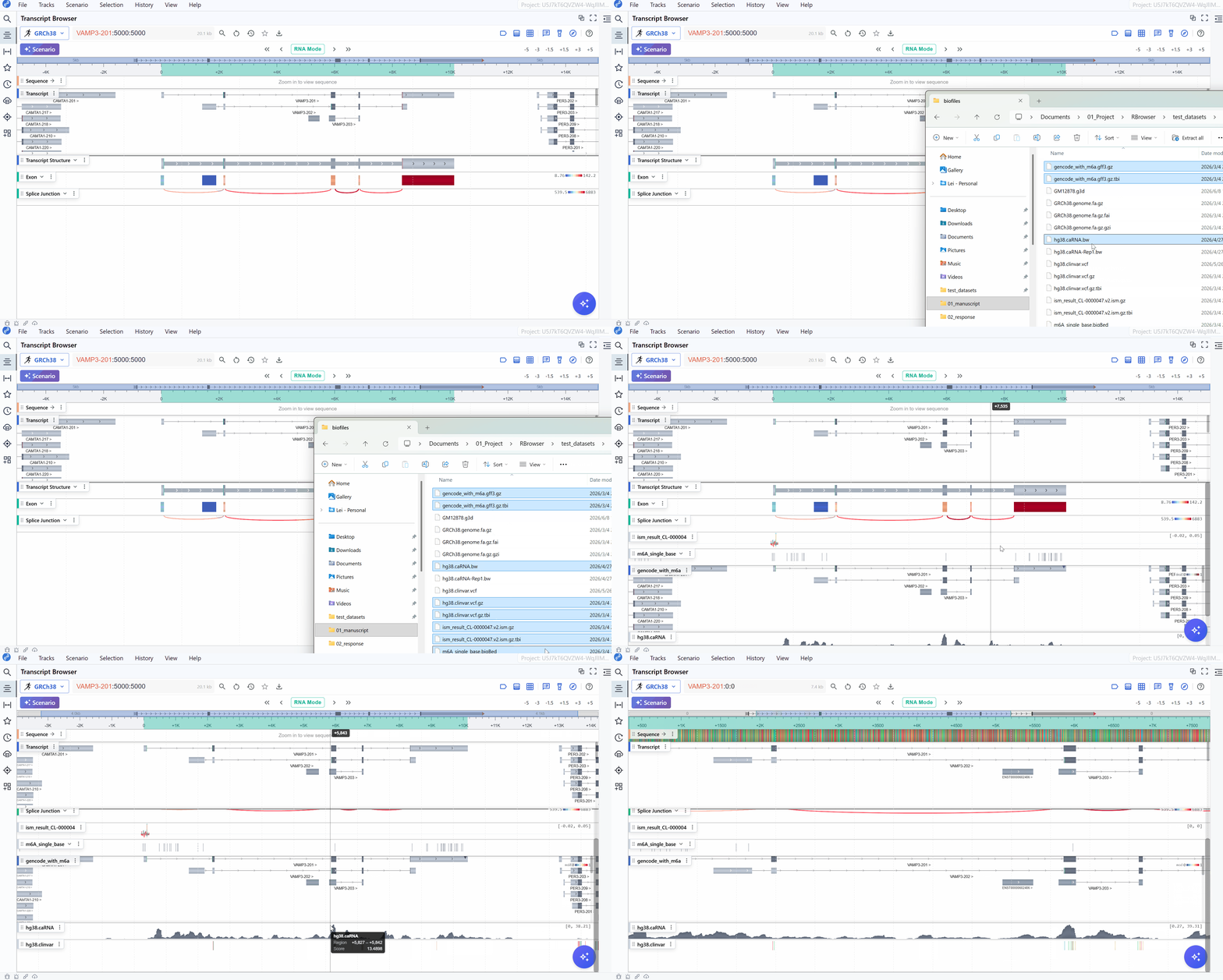
Tips
The quickest way to load local files is to drag and drop them directly onto the RBrowser window.
-
Load Remote Files
First, select Remote from the dropdown. Then click Add Remote Track to open the remote track loader.First, select Remote from the dropdown. Then click Add Remote Track to open the remote track loader.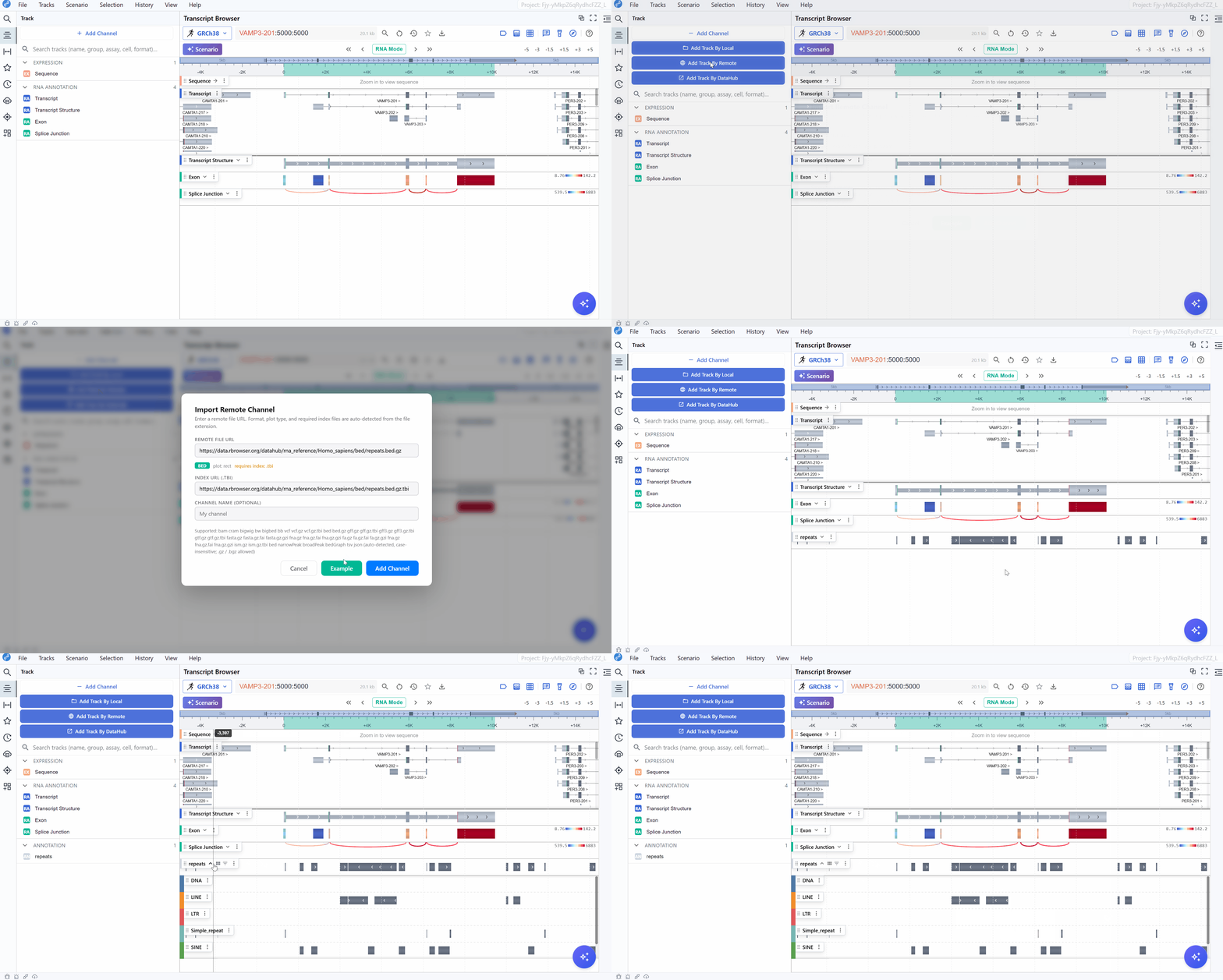
Tips
RBrowser can automatically detect bioinformatics files, including the file format and accessibility. If the data requires an index (e.g., bed.gz), you need to provide both the data file and its index file.
-
Load DataHub Data Source
You can open the DataHub to browse and load RNA-centric curated datasets.
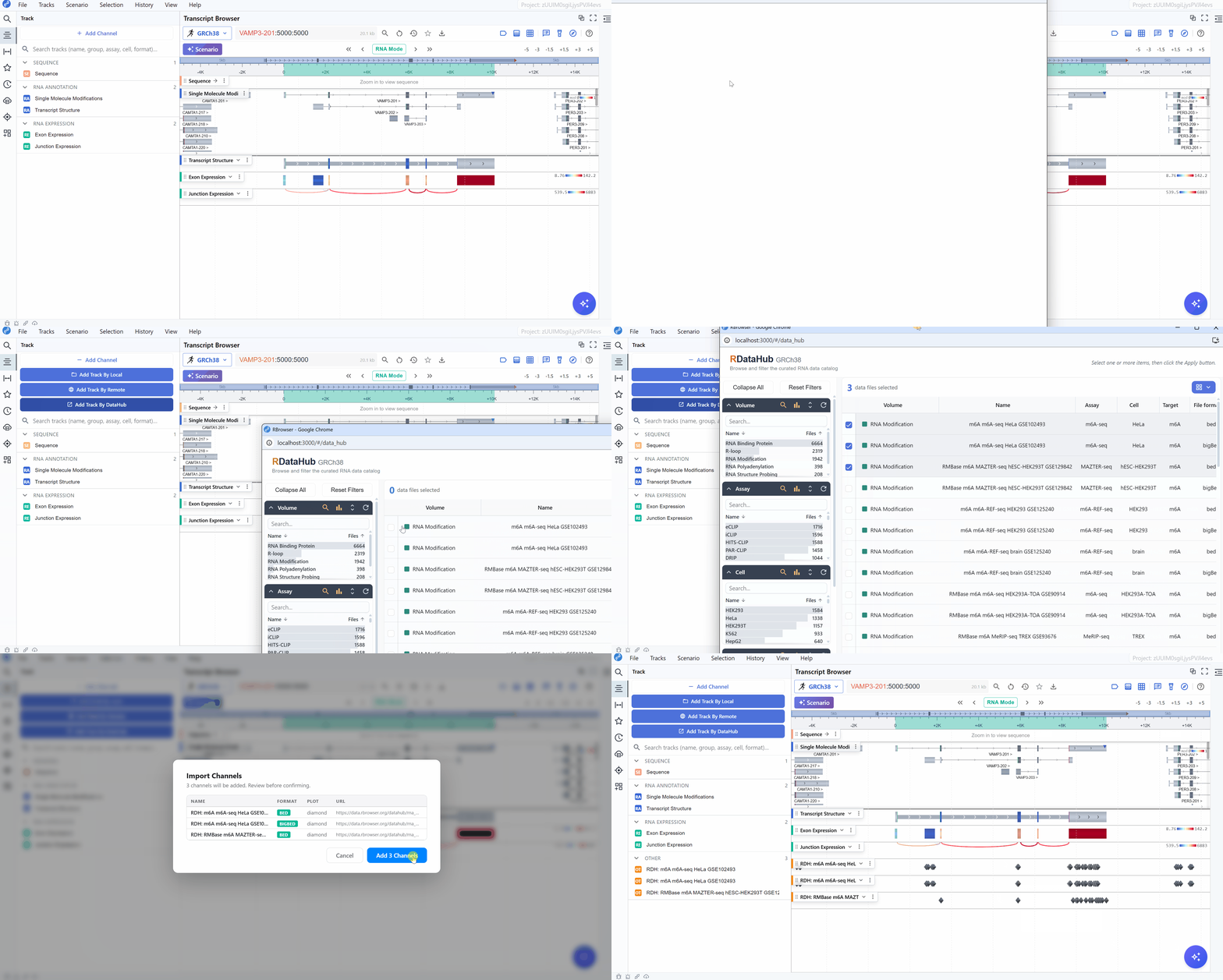
Delete Track
-
Track Menu
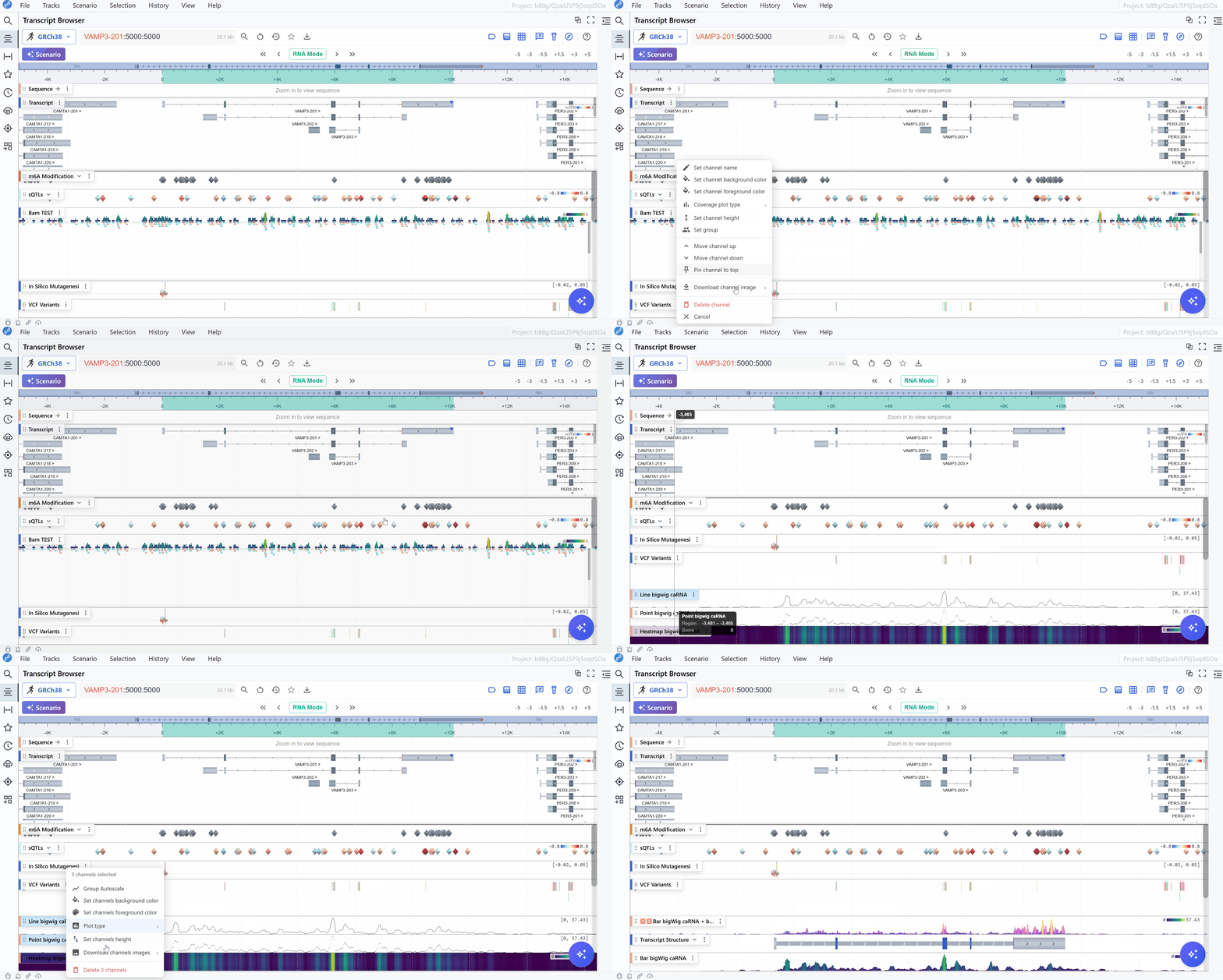
Hover over or click the track’s label in the sidebar to reveal its context menu. Click Remove Track in the menu. The selected track will be immediately removed from the main browser view. -
Batch Delete Tracks
To delete tracks in bulk, hold Ctrl and left-click the tracks you want to select. Then right-click to open the context menu and choose Delete Tracks.
Group&Autoscale Track
Hold Ctrl and left-click the tracks you want to select. Then right-click to open the context menu and choose Menu Item.
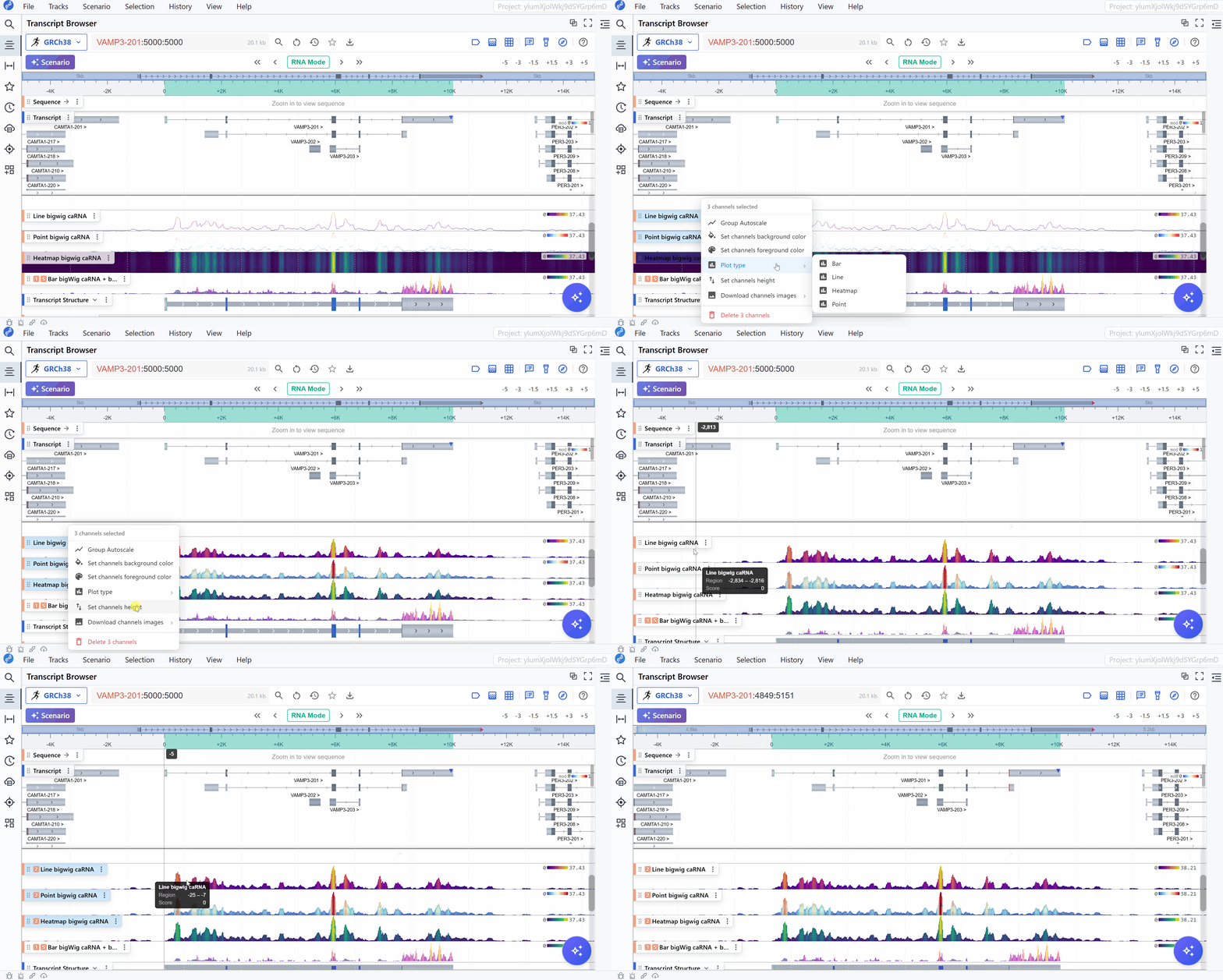
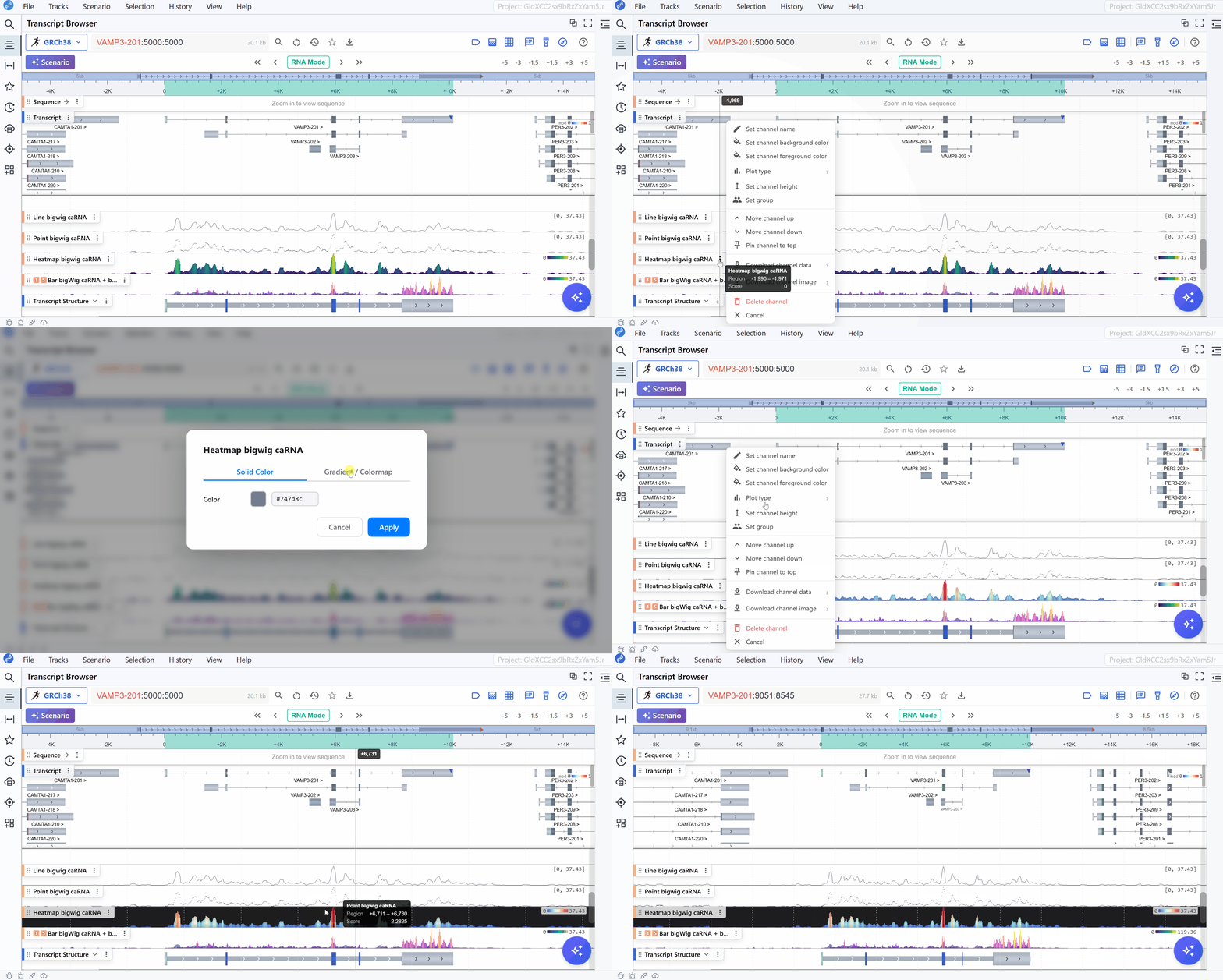
Set Track Color
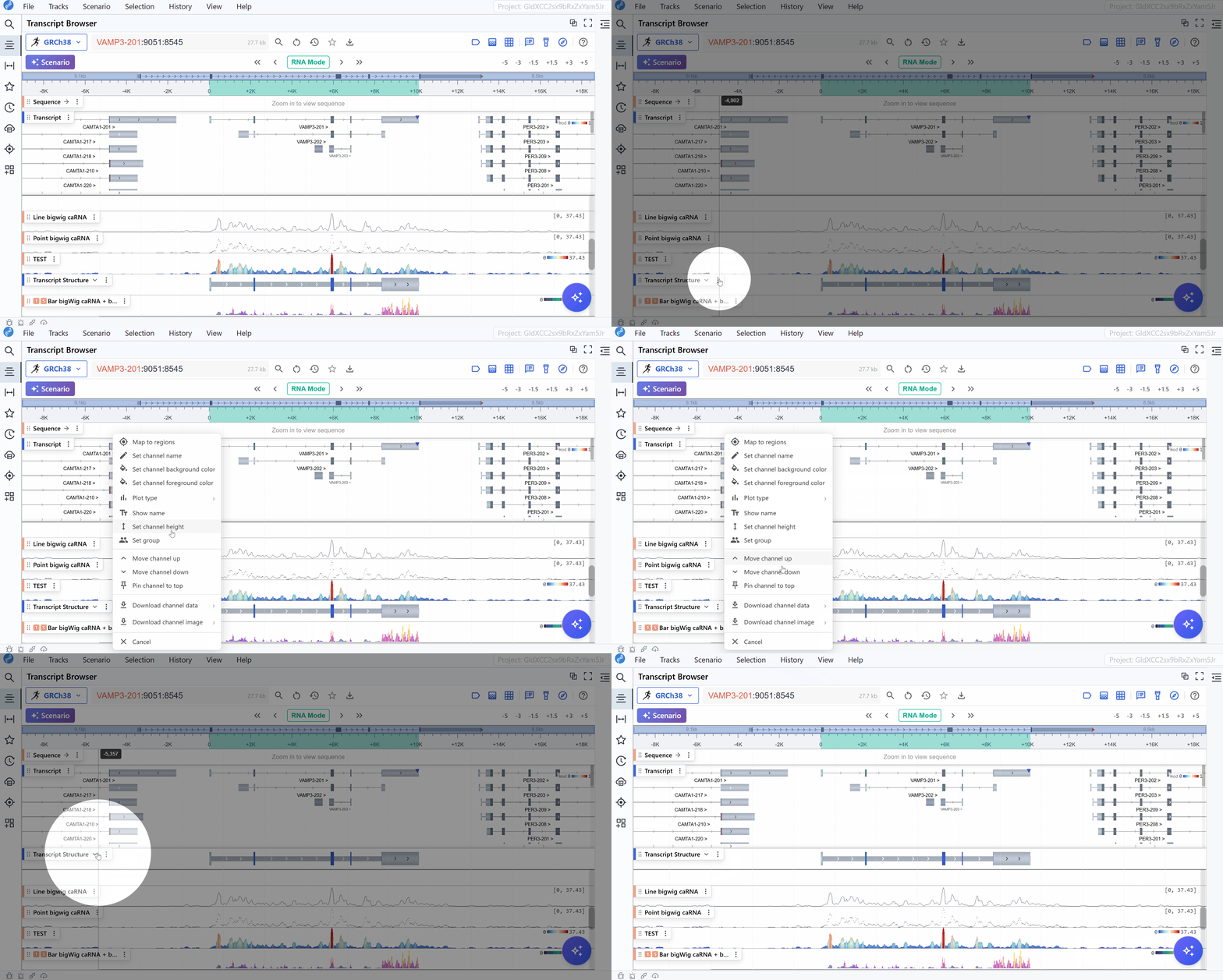
Set Track Pin
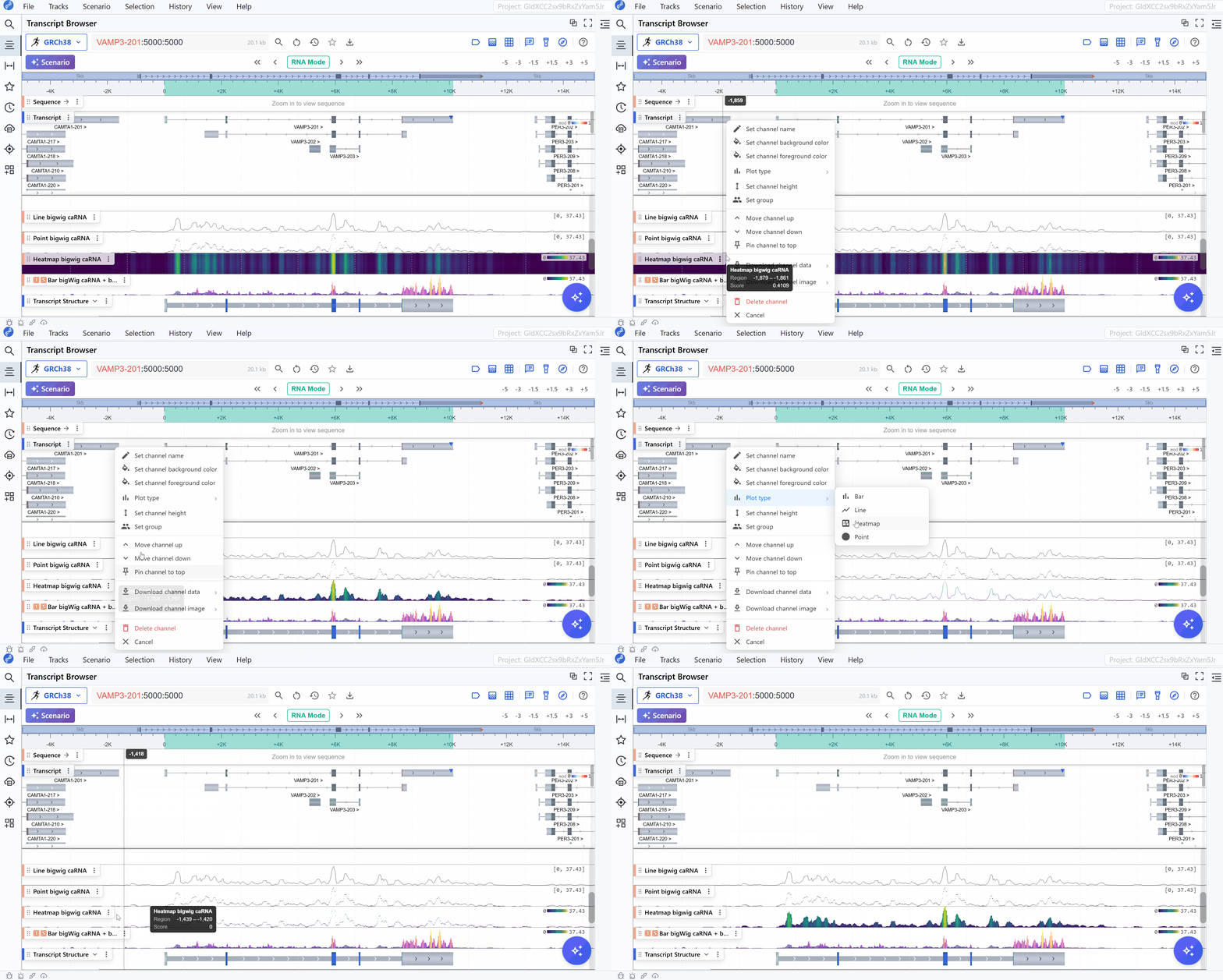
Set Track Plot
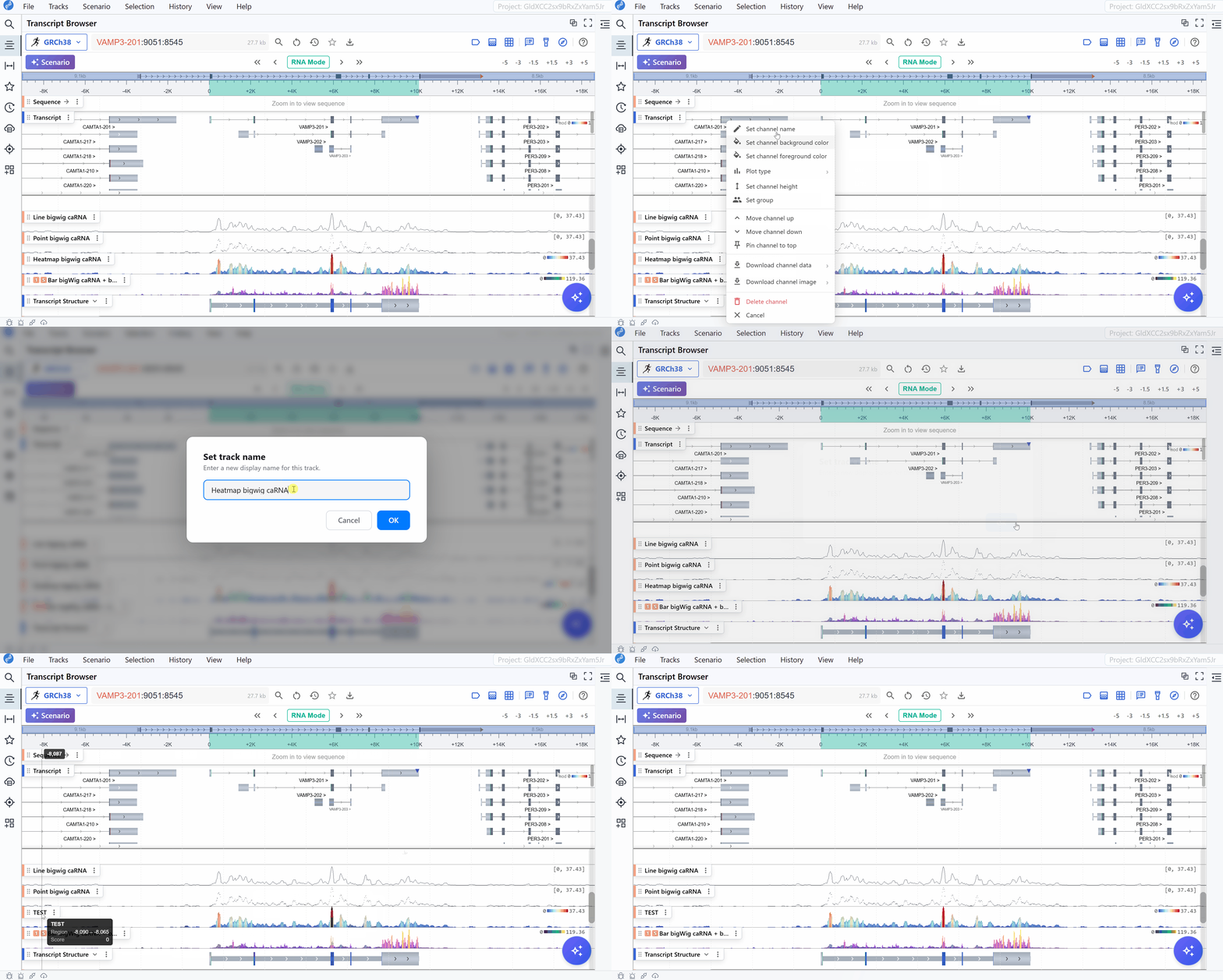
Rename Track
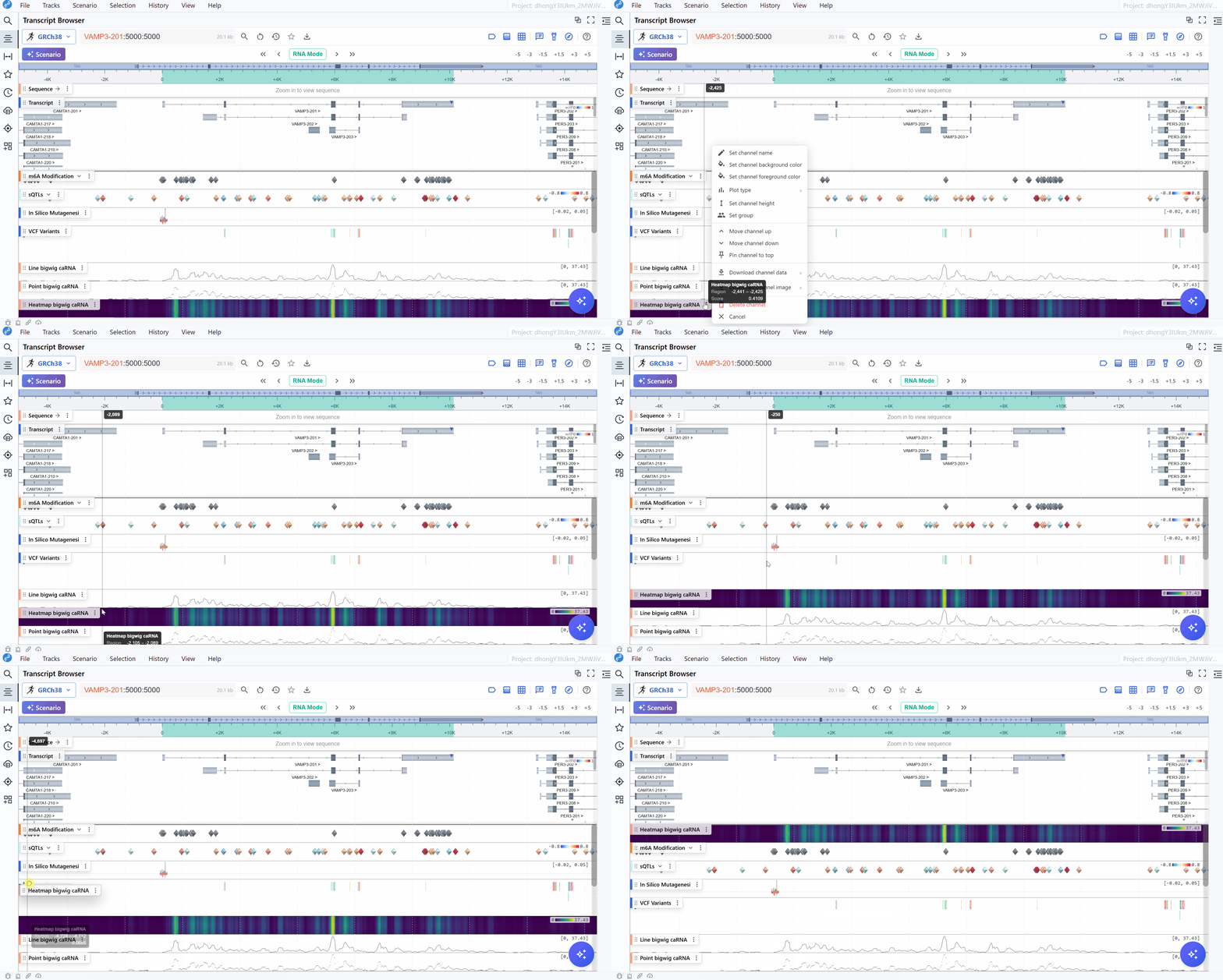
Sort Track
-
Drag to reorder
Left-click and hold the area to the left of a track label, then drag the track up or down. Release the mouse at the desired position. -
Click to reorder
Open the Track Menu, then click Move Track Up or Move Track Down to shift the track vertically.